

Exporting your Relume project to Figma is one of the most powerful workflows for modern web designers in 2026. Whether you’re building wireframes, style guides, or complete website concepts, moving your Relume project into Figma allows you to refine design systems, collaborate with teams, and prepare polished UI files for development.
In this complete step-by-step guide, you’ll learn exactly how to export Relume to Figma quickly and easily, including installing the Relume Figma Kit, setting up the plugin, linking your account, fixing font issues, and successfully importing your project without errors.
Ready to speed up your web design workflow? Start building smarter with Relume’s AI-powered sitemap and wireframe builder. Join thousands of designers already using it. Join now at Relume.io and transform your process today!
Let’s get started.
Why Export Relume to Figma?
Relume is excellent for rapid website planning, sitemap creation, wireframing, and building structured website concepts. export Relume to Figma in 2026 with this quick and easy step-by-step guide. Install the plugin, fix fonts, and import seamlessly. However, Figma remains the industry standard for:
- UI refinement
- High-fidelity mockups
- Design systems
- Developer handoff
- Client presentations
- Team collaboration
Exporting from Relume to Figma combines the best of both worlds:
- Fast website structuring in Relume
- Detailed design control in Figma
- Seamless workflow between strategy and execution
In 2026, this workflow has become a standard process for Webflow designers, agencies, and product teams. Want faster wireframes, instant sitemaps, and structured design systems? Relume makes it effortless. Stop wasting time on manual layouts and start designing smarter. Sign up now at Relume.io and experience the difference.
Step-by-Step: How To Export Relume To Figma (2026 Guide)
Below is the exact process to export your Relume project to Figma without any confusion.
Step 1: Log Into Relume and Open Your Project
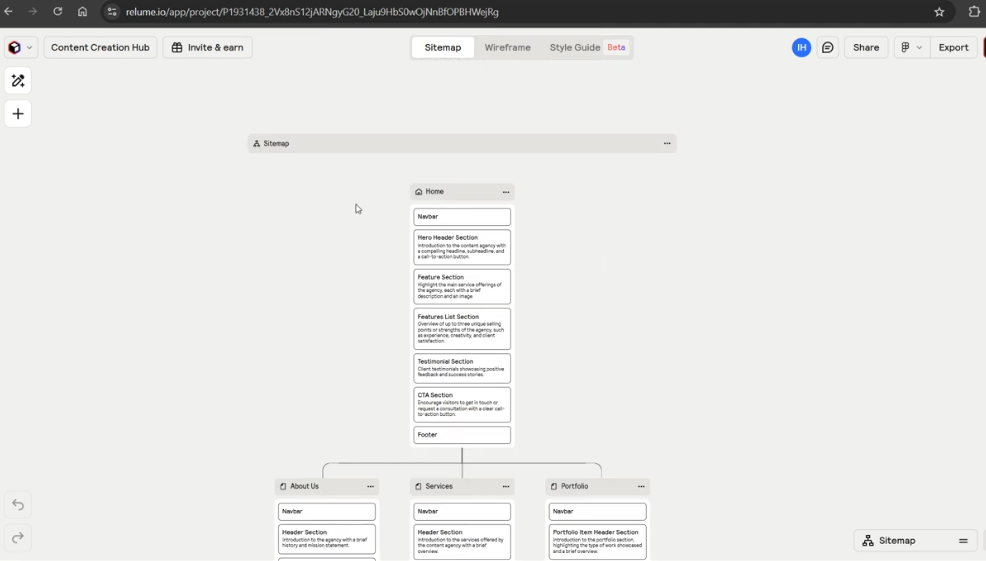
First, go to:
Sign into your account and open the project you want to export.
Before moving forward:
- Make sure your sitemap is finalized
- Confirm your wireframes are complete
- Double-check your style guide and concept
- Ensure everything looks how you want it
Once you’re happy with your project, you’re ready to export.
Step 2: Select Figma as the Export Option
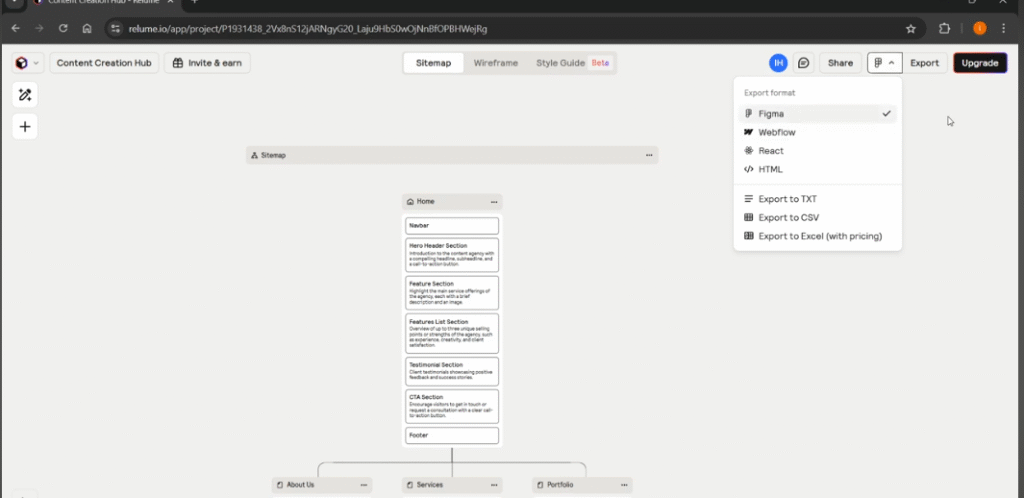
In the top-right corner of your Relume dashboard, you’ll see an Export button.
Next to it is a small icon. Here’s what to do:
- Click the icon.
- Make sure Figma is selected.
- Confirm that Figma is the export destination.
- Click Export.
This ensures your project will be prepared specifically for Figma integration.
Step 3: Open the Relume Figma Kit (Version 3.0)
After clicking export, you’ll see instructions guiding you to open the Relume Figma Kit.
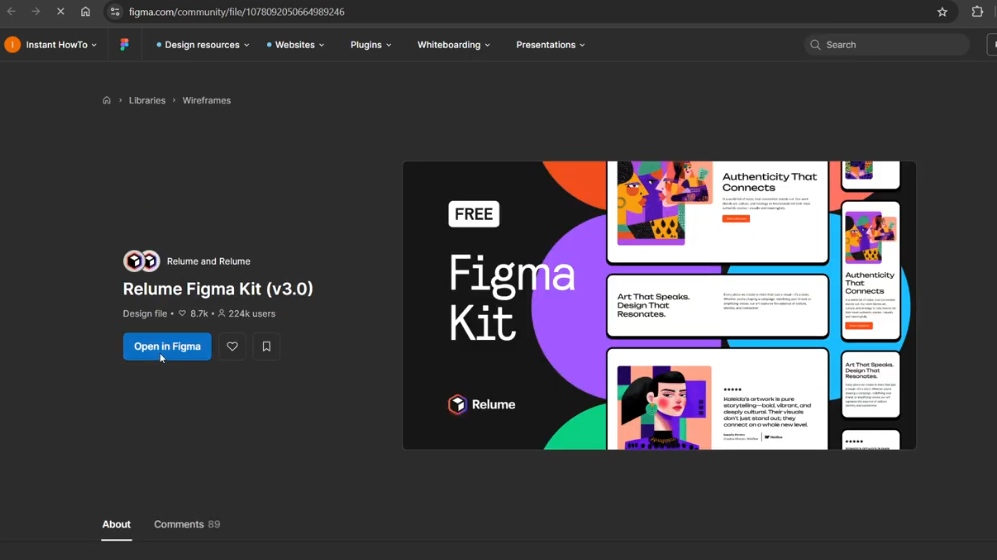
Simply:
- Click the provided link.
- It will open the Relume Figma Kit page.
- Click “Open in Figma.”
This will open a new Figma file containing:
- Relume Figma Kit Version 3.0
- Pre-built components
- Variables
- Design system structure
⚠️ If this is your first time opening the kit, it may take a few minutes to load.
Be patient — once loaded, you’re ready for the next step.
Step 4: Install the Relume Figma Plugin
Now comes the important part: installing the plugin.
Inside Relume, click:
👉 Install Plugin
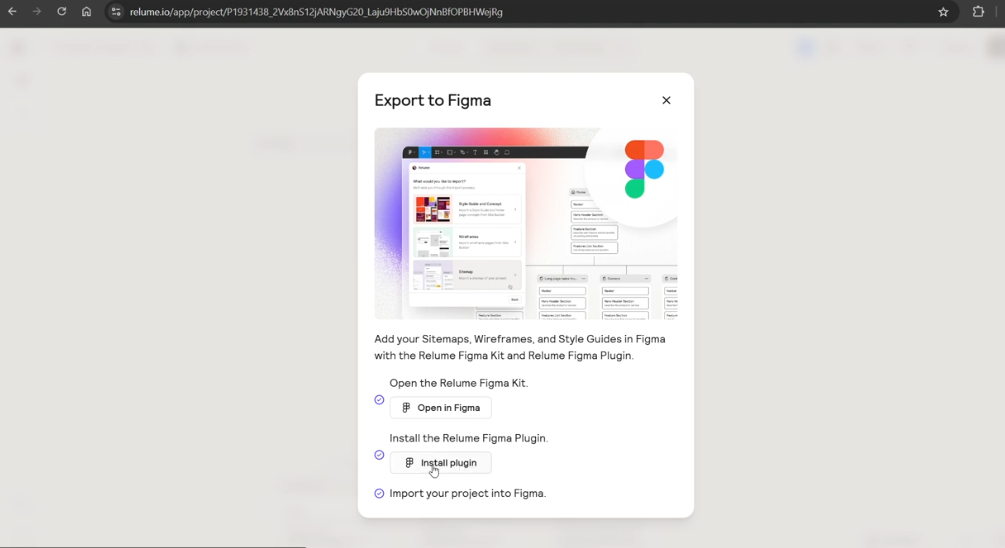
You’ll be redirected to the Figma Community page.
From there:
- Click Open in Figma
- Choose where you want the plugin to run:
- Your Relume Figma Kit file
- OR a brand-new Figma file
- OR an existing project
- Your Relume Figma Kit file
For best results (especially your first time), select the Relume Figma Kit file.
This ensures everything imports properly into the correct structure. Designers in 2026 are switching to smarter workflows with Relume. From AI site planning to seamless Figma export, everything is built for speed. Don’t fall behind — join Relume.io today and level up your design workflow.
Step 5: Run the Relume Plugin in Figma
Once inside Figma:
- Open the plugin
- You’ll see the Relume plugin panel
- Click Run
If this is your first time:
- You’ll need to click Login
- You’ll be redirected to Relume
- Sign into your account
- It will confirm: Account successfully linked
After that:
- Close the tab
- Return to Figma
- You’ll now see you’re signed in inside the plugin
This connects your Relume account to Figma.
Step 6: Select Your Project
Inside the plugin:
- Choose your Relume project
- You’ll see available import options
You can import:
- Style Guide & Concept
- Wireframes
- Sitemap
For this guide, we’ll select:
👉 Style Guide & Concept
Click Continue.
Step 7: Handle Missing Fonts (Important Step)
During import, you may receive a message about missing fonts.
This is normal.
Some fonts used in Relume may not be available in your Figma workspace.
You have two options:
- Upload the original font to Figma
- Replace it with another font
To replace:
- Select an available font (example: Able)
- Choose the style (Regular, Bold, etc.)
- Click Replace
This step ensures text renders properly in Figma.
Once done:
Click Continue.
Step 8: Wait for the Import to Complete
Now Relume will begin syncing your project.
You may see a message like:
“Stretch your legs. This may take up to 10 minutes.”
Important:
⚠️ Do NOT leave the Figma tab during import.
If you close or switch tabs, the import may stop.
Stay on the page until it completes.
Once finished, your Relume project will appear fully structured inside Figma.
What Gets Imported to Figma?
After successful export, you’ll have:
- Fully structured pages
- Organized components
- Style guide elements
- Typography system
- Color variables
- Layout structure
- Auto-layout frames
Everything will be neatly structured according to the Relume Figma Kit design system.
Common Issues & How To Fix Them
Here are the most common problems in 2026 and how to solve them.
1. Plugin Not Connecting
Solution:
- Log out of Relume
- Log back in
- Refresh Figma
- Re-run plugin
2. Import Stops Midway
This usually happens if:
- You switched tabs
- Internet connection dropped
Fix:
- Stay on the tab
- Ensure stable internet
- Re-run import
3. Fonts Look Incorrect
This happens when:
- Original font is not installed
Fix:
- Upload font file
- Or replace font inside plugin
4. Figma Kit Not Loading
First-time users may experience slow loading.
Fix:
- Wait patiently
- Clear browser cache if needed
- Restart Figma
Pro Tips for Faster Workflow in 2026
Here are some expert tips to improve your Relume to Figma workflow:
Finalize Structure First
Do not export half-completed wireframes. Finish everything inside Relume first.
Use Consistent Fonts
Choose fonts available in both Relume and Figma.
Keep Naming Organized
Clear naming inside Relume keeps Figma files cleaner.
Use New File for Client Projects
Avoid cluttering your Figma workspace.
Stay in the Tab During Import
This is the most common mistake designers make.
When Should You Export Relume to Figma?
You should export when:
- Wireframes are approved
- Sitemap is locked
- You’re ready for high-fidelity design
- You need client presentation files
- You’re preparing developer handoff
Avoid exporting too early.
Relume to Figma Workflow for Agencies (2026 Standard Process)
Most agencies follow this process:
- Strategy & Sitemap → Relume
- Wireframes → Relume
- Export to Figma
- UI Design → Figma
- Build → Webflow
This keeps design clean and efficient.
If you want to take your workflow even further, make sure your design system is structured properly before exporting. A well-organized style guide ensures cleaner imports and better consistency inside Figma. Check out our complete guide on How to Set Up Your Webflow Style Guide With Relume to learn how to build scalable typography, color systems, and reusable components the right way.
Benefits of Using Relume Figma Kit 3.0
The 3.0 version includes:
- Improved component structure
- Updated variables
- Better auto-layout
- Faster syncing
- Cleaner design system
This makes 2026 exports much smoother compared to older versions.
Relume, Figma & Webflow Experts
At Axiabits, we help businesses, agencies, and SaaS brands streamline their entire website workflow — from AI-powered planning in Relume to pixel-perfect execution in Webflow.
If you’re struggling with messy design systems, inconsistent style guides, or inefficient handoffs between Relume and Figma, we’ve got you covered.
What We Can Help You With
Relume Project Setup
We structure your sitemap, wireframes, and style guide properly inside Relume for a clean export to Figma.
Relume to Figma Integration
We handle the full export process, fix font issues, organize components, and optimize your Figma file for smooth collaboration.
Webflow Style Guide Creation
Using Client-First methodology, variables, and reusable components, we build scalable Webflow style guides that keep your site consistent and future-proof.
Figma to Webflow Development
Once your designs are finalized, we convert them into high-performing, fully responsive Webflow websites.
AI-Powered Website Optimization
We leverage Relume and modern AI workflows to reduce design time and improve project delivery speed.
If you’re ready to streamline your Relume → Figma → Webflow workflow and eliminate design chaos, let’s make it happen.
Book now and let’s get started!
Conclusion
Exporting Relume to Figma in 2026 is quick and easy once you understand the correct workflow.
Here’s the simplified version:
- Open your project in Relume
- Select Figma in export settings
- Open Relume Figma Kit
- Install and run the plugin
- Log in and connect account
- Choose project and import
- Fix fonts if needed
- Stay in tab and let it sync
Within minutes, your entire Relume project will be fully structured inside Figma — ready for high-quality design, collaboration, and development.
Now that you know how easy it is to export Relume to Figma, it’s time to try it yourself. Build faster, design better, and deliver projects quicker. Sign up now at Relume.io and start creating like a pro today!
Disclaimer
This article features affiliate links, which indicate that if you click on any of the links and make a purchase, we may receive a small commission. There’s no additional cost to you, and it helps support our blog so we can continue delivering valuable content. We endorse only products or services we believe will benefit our audience.
Frequently Asked Questions
Can I export Relume directly to Figma?
Yes, you can export Relume directly to Figma using the official Relume Figma Plugin. Simply select Figma as your export option in Relume, install the plugin, connect your account, and import your project seamlessly.
Is the Relume Figma export free?
You can access the Relume Figma Kit and plugin, but exporting projects may require an active Relume plan depending on your subscription. Always check your current plan inside Relume.io for export eligibility.
How long does it take to export Relume to Figma?
The export process typically takes 2 to 10 minutes, depending on the size of your project and internet speed. Larger projects with multiple pages may take longer.
Do I need the Relume Figma Kit to export?
Yes. The Relume Figma Kit (Version 3.0 or latest) is required because it contains the component structure and design system needed to properly import your project into Figma.
Does exporting Relume affect my original project?
No. Exporting to Figma does not modify your Relume project. It simply creates a synced version inside Figma while your original Relume file remains unchanged.


