
Filmmaking just took a massive leap forward with Kling 3.0. If you’ve struggled with character consistency, multi-shot storytelling, or generating realistic AI actors with native audio — this update changes everything.
- How to access Kling 3.0
- How to create consistent AI characters using Elements
- How to generate multi-shot cinematic scenes
- How to combine it with Nano Banana Pro
- Text-to-video workflows
- Common issues (and how to avoid them)
- Pro tips for filmmakers & advertisers
Ready to level up your AI filmmaking? Join now Kling AI, and start generating multi-shot cinematic videos with character consistency and native audio. Don’t wait — your next viral AI film could be just one prompt away.
What Is Kling 3.0?
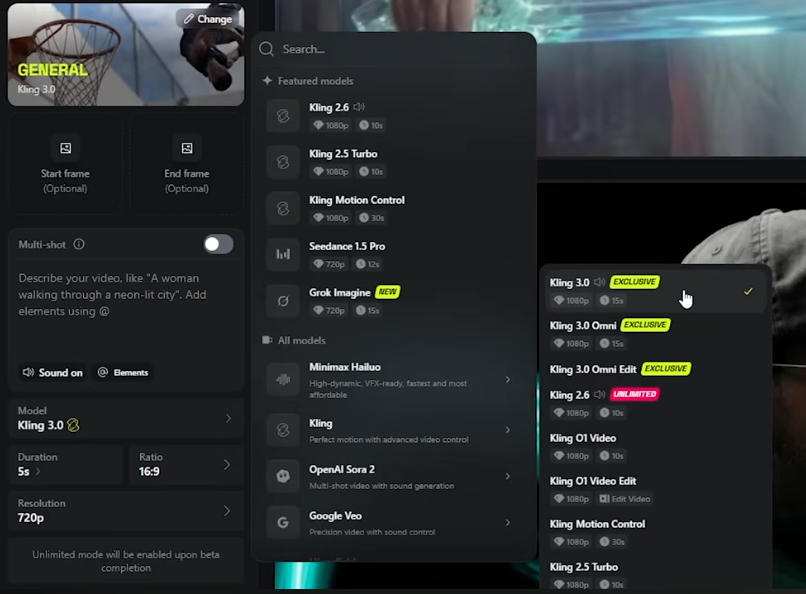
Kling 3.0 is one of the most advanced AI video generation models currently available. It allows creators to:
- Generate up to 15 seconds of video
- Use multi-shot prompting in a single generation
- Maintain character and object consistency
- Add native audio
- Upload multiple reference images
- Control resolution and duration
- Generate realistic emotional performances
For filmmakers and advertisers, this means fewer workarounds and more control.
How to Access Kling 3.0
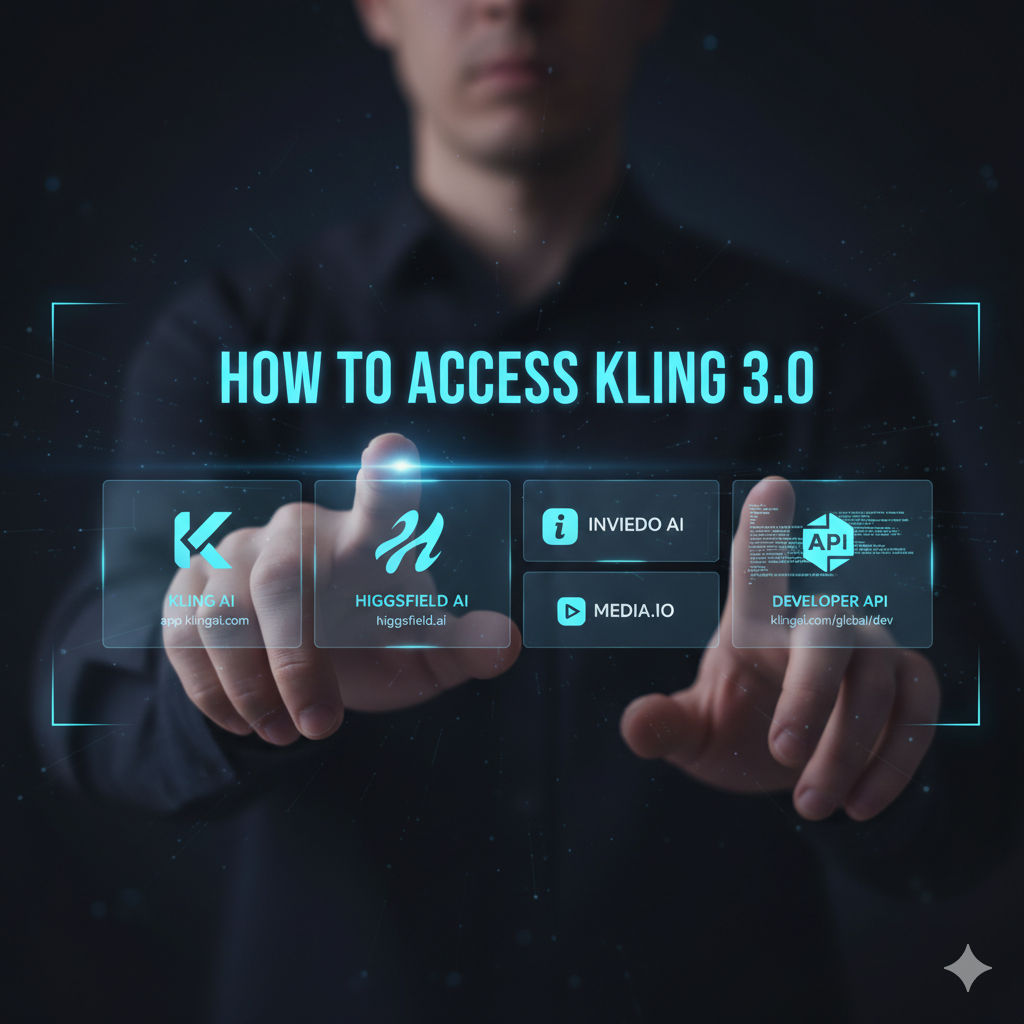
To start using Kling 3.0:
- Go to the platform hosting Kling.
- Navigate to the Video tab.
- Click Create Video.
- Select Kling 3.0 from the model dropdown.
Once selected, you’ll see options for:
- Starting frame upload
- Text prompt input
- Multi-shot toggle
- Elements tab
- Duration slider
- Resolution settings
Now let’s explore the most powerful feature.
Feature 1: Character Consistency Using Elements
One of the biggest problems in AI filmmaking has been character inconsistency — faces morphing, outfits changing, or features distorting between shots.
Kling 3.0 largely solves this with Elements.
What Are Elements?
Elements are sets of reference images (multiple angles) of a character or object that help maintain consistency across the entire video.
How to Create an Element
- Click the Elements tab.
- Select Create New Element.
- Upload multiple reference images:
- Front view
- Side profile
- Back view
- Medium shot
- Front view
- Name the element.
- Add a short description.
- Save.
Now, every time you generate a video, you can select that element to maintain consistency.
Struggling with inconsistent AI characters? Start free with Kling AI today and use the Elements feature to lock in flawless character and product consistency across every shot.
Why This Is a Game-Changer
Imagine asking for:
“Slow full camera orbit around the bearded man.”
A full 3D camera rotation is a brutal test for consistency. Previously, AI would distort faces or alter features mid-shot.
With Elements enabled:
- The face remains stable
- Facial hair stays accurate
- Clothing doesn’t randomly change
- Proportions stay consistent
For AI filmmaking and advertising, this is huge.
Feature 2: Product & Object Consistency
Elements aren’t just for characters.
You can:
- Lock in product designs
- Maintain logo accuracy
- Keep brand assets consistent
For advertisers, this means:
- AI-generated commercials
- Consistent product renders
- Stable branding visuals
This is especially powerful when creating promotional videos.
Feature 3: Controlling Duration (Up to 15 Seconds)
Kling 3.0 allows you to:
- Generate between 3 to 15 seconds
- Use a precise slider to control duration
Why this matters:
- Short 3-second clips for ads
- Full 15-second cinematic sequences
- Controlled pacing for storytelling
This flexibility is crucial when building multi-shot sequences.
Want to add realistic dialogue to your AI videos? Don’t miss our complete guide on How to Use AI Lip Sync in Kling AI 2026, where we break down step-by-step settings, best prompts, and pro tips to make your characters speak naturally with perfect audio sync. This guide will help you create more cinematic, professional AI films with Kling AI.
Feature 4: Multi-Shot Generations (Cinematic Storytelling)
This is arguably the biggest breakthrough.
Instead of generating one continuous shot, Kling 3.0 allows you to:
- Toggle Multi-Shot
- Add multiple shot prompts
- Combine them into one 15-second cinematic sequence
Want to create professional 15-second cinematic sequences in one generation? Sign up now for Kling AI and experience powerful multi-shot storytelling built for filmmakers and advertisers.
How to Use Multi-Shot Mode
- Upload starting frame (optional).
- Enable Multi-Shot toggle.
- Add individual shot prompts.
- Each shot must be at least 3 seconds.
- Total duration cannot exceed 15 seconds.
Pro Prompt Structure
Use structured prompts like:
- Camera angle
- Lens type
- Character position
- Action
- Emotional tone
- Lighting
Example:
Wide 35mm lens shot of a bearded man standing in an alien temple. Slow dolly-in camera movement. He raises a glowing glass sculpture. Dramatic lighting. 4 seconds.
Repeat this structure for each shot.
Using ChatGPT to Write Multi-Shot Prompts
Many creators use ChatGPT to generate structured prompts.
Ask it to:
- Write 3–5 individual cinematic prompts
- Include camera angles
- Specify lenses
- Keep each under 500 characters
- Fit within 15 seconds total
This makes complex storytelling much easier.
Feature 5: Text-to-Video (No Starting Frame Needed)
You don’t always need a starting frame.
Kling 3.0 can generate cinematic scenes purely from text prompts.
Example:
Slow dolly camera move in. Emotional woman standing by the Brooklyn Bridge at sunset. Shallow depth of field. Natural lighting. Tears in her eyes.
Results often include:
- Realistic skin texture
- Natural hair movement
- Emotional facial expressions
- Depth of field
- Subtle lighting details
This opens the door to short films, emotional scenes, and social media storytelling without external image generation.
Combining Kling 3.0 With Nano Banana Pro (Pro Workflow)
For maximum control, use this two-step workflow:
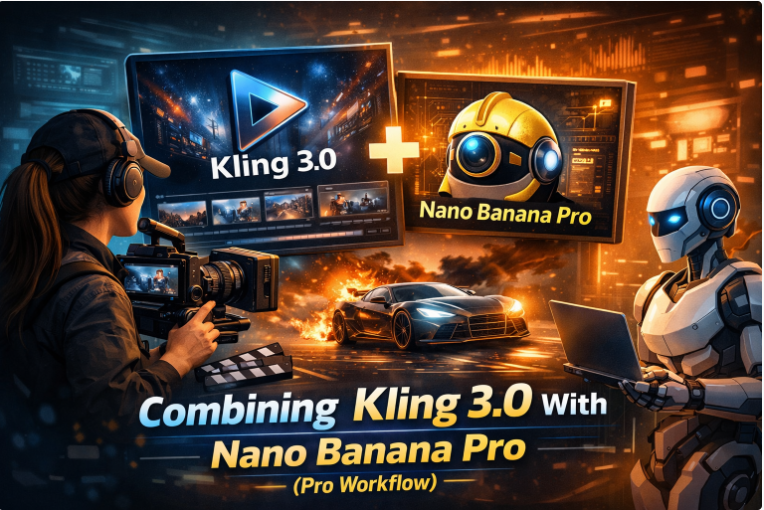
Step 1: Generate Key Visuals in Nano Banana Pro
Using Nano Banana Pro, you can:
- Create 4K 16:9 starting frames
- Design cinematic key visuals
- Generate complex environments
- Build 3D glowing objects
Example workflow:
- Upload a rough logo.
- Ask for a glowing glass 3D render.
- Generate high-quality environment.
- Save image.
Step 2: Animate in Kling 3.0
- Upload starting frame.
- Add Elements for consistency.
- Write motion prompt.
- Choose duration.
- Generate.
This hybrid approach gives you:
- Visual control
- Motion control
- Character stability
Perfect for AI filmmaking professionals.
Native Audio Generation
Kling 3.0 includes native audio in many generations:
- Ambient sounds
- Sound effects
- Dialogue
- Atmospheric audio
However, this feature isn’t perfect.
Sometimes Kling adds:
- Random dialogue
- Nonsensical speech
- Unexpected background sounds
Even when prompts say “no dialogue,” it may still generate speech.
Workaround:
Be extremely explicit in prompts:
- “No dialogue”
- “No speech”
- “Silent scene”
- “Ambient wind only”
Even then, it may occasionally ignore instructions.
Why Kling 3.0 Is a Turning Point for AI Filmmaking
Before this update, creators had to:
- Generate separate images
- Animate each manually
- Stitch scenes together
- Fix inconsistencies in editing
Now, you can:
- Create multi-shot sequences
- Maintain character consistency
- Add audio
- Generate entire mini-films
- Do it all in one generation
For advertisers:
- Product launches
- Branded storytelling
- Social ads
- AI commercials
For filmmakers:
- Proof-of-concepts
- Scene previsualization
- Indie short films
- Experimental cinema
We’re barely scratching the surface.
Final Thoughts
Kling 3.0 represents one of the biggest upgrades in AI video generation so far.
Its strongest features are:
- Character consistency via Elements
- Multi-shot cinematic generation
- Realistic emotional performances
- Native audio integration
- Up to 15 seconds of controlled storytelling
While issues remain — especially with dialogue control and text rendering — the overall leap forward is undeniable.
If you’re serious about AI filmmaking in 2026, Kling 3.0 is absolutely worth mastering.
The future of film production is becoming faster, cheaper, and more accessible — and tools like Kling 3.0 are leading that revolution. Combine cinematic motion, emotional performances, and native audio in one powerful platform. Try Kling 3.0 now and upgrade your AI filmmaking workflow instantly
Disclaimer
This article features affiliate links, which indicate that if you click on any of the links and make a purchase, we may receive a small commission. There’s no additional cost to you, and it helps support our blog so we can continue delivering valuable content. We endorse only products or services we believe will benefit our audience.
Frequently Asked Questions
What is Kling 3.0 and how does it help in AI filmmaking?
Kling 3.0 is an advanced AI video generation model that allows creators to produce cinematic-quality videos using text prompts and image references. It supports multi-shot storytelling, character consistency through Elements, native audio generation, and up to 15 seconds of controlled footage. This makes it a powerful solution for filmmakers, advertisers, and content creators looking to streamline video production.
How does the Elements feature improve character consistency in Kling 3.0?
The Elements feature allows users to upload multiple reference images of a character or object from different angles (front, side, back, etc.). Kling 3.0 uses these references to maintain visual consistency throughout the video. This significantly reduces issues like facial distortion, outfit changes, or identity shifts — which were common in earlier AI video models.
What is multi-shot generation in Kling 3.0?
Multi-shot generation allows you to create multiple cinematic shots within a single 15-second video. Instead of generating one continuous scene, you can define individual prompts for different shots — including camera angles, lens types, actions, and emotions. This enables structured storytelling, making Kling 3.0 ideal for short films, ads, and narrative sequences.
Can Kling 3.0 generate videos without a starting image?
Yes. Kling 3.0 supports full text-to-video generation. You can create realistic cinematic scenes using only descriptive prompts that specify lighting, camera movement, character emotion, and environment. While using a starting frame offers more control, text-only generation can still produce highly realistic results.
What are the limitations of Kling 3.0?
Although Kling 3.0 is powerful, it still has some limitations:
-> It may occasionally add random dialogue even when not requested
-> Faces can lose detail in wide or distant shots
-> Complex text rendering (like signs or timetables) may appear distorted
To minimize these issues, use clear prompts, keep characters closer to the camera, and add important text in post-production when necessary.


