
Introduction
The AI video generation has entered a new era. Instead of generating random animations, creators can now clone real motion from existing videos and apply it to custom characters, brand avatars, or AI influencers.
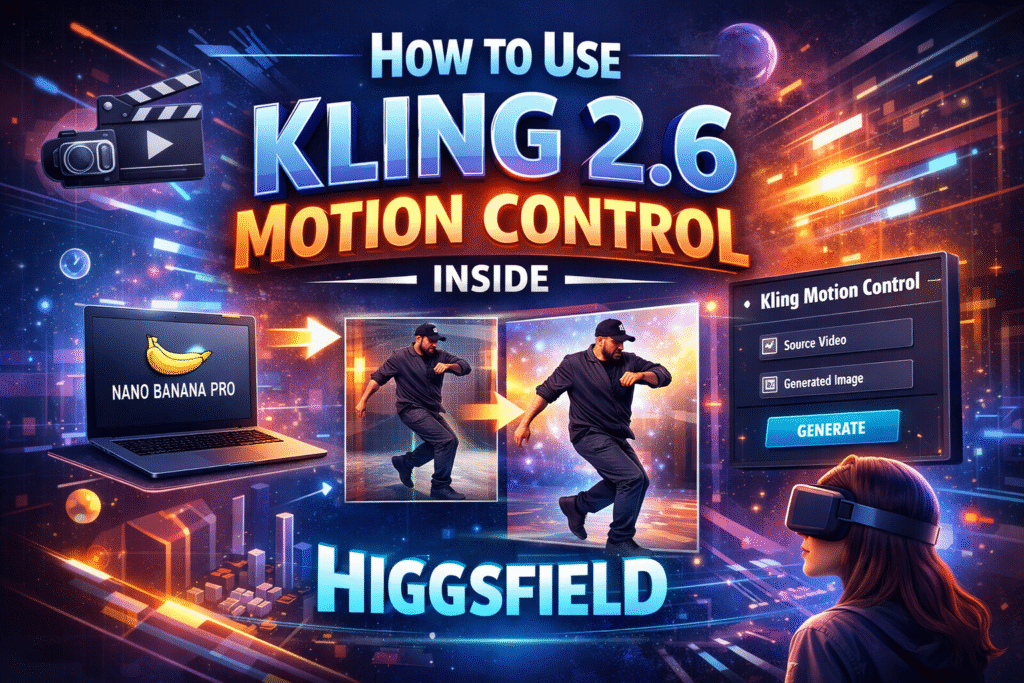
One of the most powerful ways to do this is by using Kling 2.6 Motion Control inside Higgsfield.
In this professional, SEO-optimized guide, you’ll learn:
- What Kling 2.6 Motion Control actually does
- Why alignment is the key to realistic motion transfer
- A step-by-step workflow (from video to final render)
- Advanced optimization tips for high-quality results
- Common mistakes to avoid
- How creators and marketers can monetize this workflow
If you’re serious about AI content creation, this guide will give you a competitive edge. Create realistic AI videos with Kling 2.6 Motion Control inside Higgsfield. Follow our expert guide to clone motion, align images, and generate cinematic content.
With advanced motion control, cinematic rendering, and powerful AI animation tools, Kling helps creators turn simple ideas into professional-quality videos in minutes. Sign up today and start building smarter content.
What Is Kling 2.6 Motion Control?
Kling 2.6 Motion Control is an advanced AI feature that allows you to:
- Extract motion data from a source video
- Map body movement and camera motion
- Apply that motion to a static image
- Maintain natural gestures and timing
Instead of manually animating frames, Kling reads the motion vectors from your video and recreates them using your uploaded image.
The result?
Your image moves exactly like the original video — same posture, same gestures, same pacing.
This is called motion cloning or AI motion transfer. Whether you’re creating AI influencers, UGC-style ads, or cinematic short videos, Kling gives you full creative control. Join now and unlock powerful motion cloning features instantly.
Tools Required for This Workflow
To follow this method professionally, you’ll need:
- Higgsfield
- Kling 2.6 Motion Control
- Nano Banana Pro
- A high-quality source video
- A clear image you want to animate
Each tool plays a specific role in ensuring smooth and realistic output.
If you’re new to AI video creation, don’t miss our complete guide on How to Use Kling AI, where we break down everything from account setup to generating your first cinematic AI video using Kling AI. This step-by-step tutorial will help you understand the core features, settings, and optimization tips so you can start creating professional-quality AI videos with confidence.
Step-by-Step Guide: Clone Motion Like a Pro
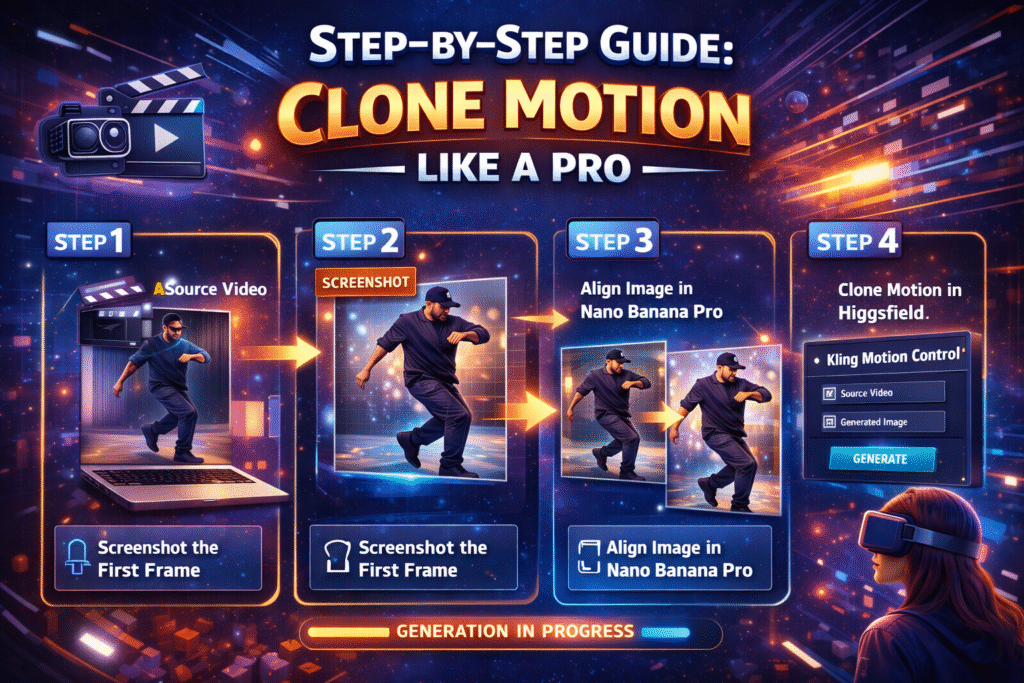
Let’s break this down into a clean, professional workflow.
Step 1: Choose the Right Source Video
Your source video determines everything:
- Body movement
- Hand gestures
- Facial motion
- Camera movement
- Scene pacing
Best Practices for Source Video Selection
- Use high-resolution footage
- Ensure good lighting
- Avoid heavy camera shake
- Keep framing clean
- Use short clips (5–10 seconds for testing)
The cleaner the video, the cleaner the motion transfer.
you can generate studio-level AI videos directly from your browser. It’s fast, scalable, and built for modern creators. Sign up now kling ai and start creating high-converting AI content today.
Step 2: Screenshot the First Frame (Critical Step)
Pause your source video at the very first frame and take a screenshot.
This is not optional. It’s critical.
Why This Matters
Kling requires a visual alignment anchor.
If your starting image looks completely different from the video’s first frame:
- Motion mapping becomes inaccurate
- Body proportions may stretch
- Facial animation can look distorted
- AI may misinterpret spatial depth
The first frame acts as a structural blueprint for motion transfer.
Think of it as syncing the skeleton before applying movement.
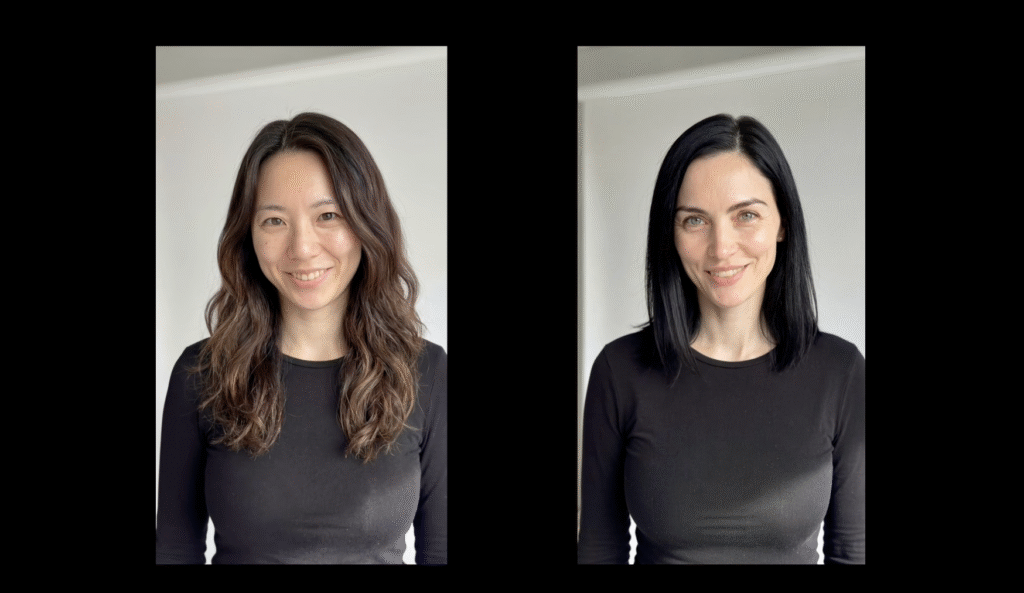
Step 3: Align the Image Using Nano Banana Pro
Now go to Nano Banana Pro.
Upload:
- The image you want to animate
- The screenshot of the first frame
What Are We Doing Here?
We’re forcing structural consistency.
The goal is to:
- Match body pose
- Match camera angle
- Match lighting direction
- Match composition
- Keep background identical
Recommended Prompt (Professional Version)
Use a clear and precise prompt like:
Replace the person in the reference image with the subject from my uploaded image. Maintain the exact same background, pose, lighting, camera angle, framing, composition, and facial direction. Do not alter environmental elements.
This ensures:
- Identity swap only
- No structural distortion
- Proper alignment for motion transfer
Once satisfied, download the generated image.
This is your motion-ready image.
Step 4: Use Kling 2.6 Motion Control Inside Higgsfield
Now open Higgsfield.
Navigate to:
Video → Kling Motion Control → Motion Control Tab
Upload:
- Your original source video
- Your aligned generated image
Click Generate.
What Happens During Generation?
Kling analyzes:
- Body keypoints
- Limb tracking
- Facial landmarks
- Camera motion
- Temporal consistency
It then recreates the movement using your new image.
Generation time depends on:
- Video length
- Resolution
- Server load
Usually, it takes a few minutes.
Final Output: Motion Successfully Cloned
Your static image now:
- Moves exactly like the original subject
- Mimics body mechanics
- Preserves camera movement
- Maintains realistic motion flow
And this is achieved without manual animation.
Why This Workflow Produces Superior Results
Most users fail because they skip alignment.
The winning formula is:
- First-frame screenshot
- Structural alignment
- Controlled motion mapping
AI performs best when you reduce ambiguity.
Alignment removes confusion.
Precision increases realism.
Looking to scale your content without increasing your budget? Kling AI makes it easy to automate motion-based videos using advanced AI technology. Create your free account now and experience the future of video production.
Practical Use Cases for Creators & Marketers
If you’re in digital marketing or advertising, this is powerful.
AI UGC Ads
Clone viral TikTok-style movements and apply them to branded characters.
Influencer-Style Content
Create AI influencers with human-like motion.
Product Demonstrations
Use consistent motion across multiple characters for A/B testing.
Creative Agencies
Reduce production costs while increasing content volume.
For sellers running paid ads, this workflow can dramatically reduce production costs and increase creative testing speed.
Want to add realistic voice animation to your videos? Check out our complete guide on Use AI Lip Sync in Kling AI 2026 to learn how to perfectly sync speech with AI-generated characters using Kling AI.
Transform Your Content with Advanced AI Solutions
Axiabits delivers cutting-edge AI solutions to help creators, marketers, and businesses produce professional-quality videos and animations faster and smarter.
- AI Motion Cloning & Animation: Transfer realistic movements from any video to your images—perfect for AI influencers and branded content.
- AI Video Generation & Editing: Generate cinematic AI videos with automated editing, motion mapping, and high-resolution output.
- Content Personalization: Create tailored video ads, product demos, and dynamic marketing content at scale.
- Workflow Consulting & Optimization: Streamline AI workflows, automate repetitive tasks, and maximize ROI.
- Training & Support: Tutorials, workshops, and expert guidance to master AI video tools.
Ready to elevate your AI content? Book Now with Axiabits and start creating professional videos today!
Final Thoughts
Kling 2.6 Motion Control inside Higgsfield is not just another AI feature.
It’s a production-level tool for serious creators.
When used correctly — with proper alignment through Nano Banana Pro — it delivers highly realistic motion cloning that can compete with traditional animation workflows.
Master this process and you unlock:
- Scalable AI video production
- Lower content creation costs
- Faster creative testing
- Professional-grade motion control
In the world of AI video, motion is the new competitive advantage. From motion transfer to realistic animation, everything is designed for creators and marketers. Click here to join Kling AI today and start producing professional AI videos in minutes.
Disclaimer
This article features affiliate links, which indicate that if you click on any of the links and make a purchase, we may receive a small commission. There’s no additional cost to you, and it helps support our blog so we can continue delivering valuable content. We endorse only products or services we believe will benefit our audience.
Frequently Asked Questions
What is Kling 2.6 Motion Control inside Higgsfield?
Kling 2.6 Motion Control inside Higgsfield is an AI-powered feature that allows you to extract motion from a source video and apply it to a static image. It clones body movements, gestures, facial motion, and camera dynamics from the original video and recreates them using your uploaded image.
Why do I need to screenshot the first frame of the video?
The first frame acts as a structural reference point for motion alignment.
If your starting image does not match the pose, camera angle, lighting, and framing of the first frame, the AI may:
– Misalign body movement
– Distort proportions
– Produce unnatural animation
Taking a screenshot ensures accurate motion mapping and realistic output.
What role does Nano Banana Pro play in this workflow?
Nano Banana Pro is used to align your target image with the first frame of the source video.
It allows you to:
– Replace the person in the screenshot
– Keep the exact same background
– Maintain camera angle and pose
– Ensure structural consistency
This alignment step dramatically improves motion cloning accuracy.
Can I clone motion from any type of video?
You can clone motion from most videos featuring visible human movement. However, very fast actions, extreme camera shake, or heavy motion blur may reduce accuracy.
For best results, use controlled and well-lit footage.
What resolution should I use for best results?
Use high-resolution inputs whenever possible. Higher-quality source videos and images improve:
– Facial tracking
– Motion consistency
– Final render clarity
Low-resolution files can produce blurry or distorted results.


