

If you’re managing projects, leads, or internal workflows, manual email updates can slow your team down. The good news? You can easily send automated emails in monday.com and streamline communication in just a few clicks.
- What email automation in monday.com is
- Why it’s powerful for teams and businesses
- Step-by-step instructions to set it up
- Advanced automation tips
- Best practices to avoid common mistakes
- Real-world use cases
By the end of this article, you’ll know exactly how to create an automated email workflow that saves time and ensures no important updates are missed. Save time and boost productivity with monday.com email automation. Learn how to set up automated emails notifications in minutes.
Ready to automate your workflow and save hours every week? Start using monday.com today and experience powerful email automation, project tracking, and team collaboration in one place.
What Is Email Automation in monday.com?
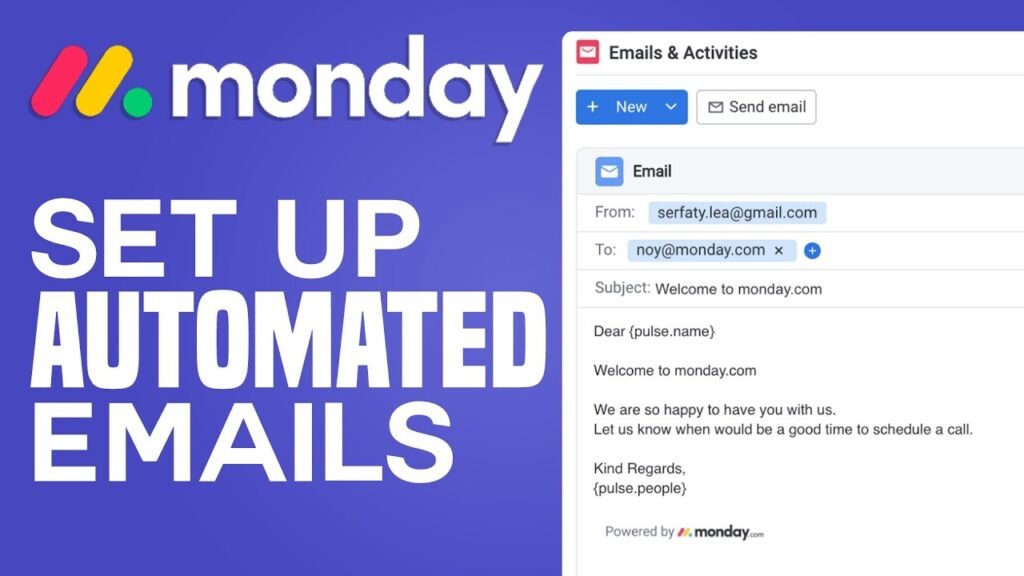
Email automation in monday.com allows you to automatically send email notifications when specific changes happen on a board. These changes (called triggers) can include:
- Status updates
- Date changes
- Item creation
- Task completion
- Column value changes
Instead of manually informing your team or clients, the system automatically sends the email based on your defined rules.
This is especially powerful for:
- Project managers
- Sales teams
- Marketing agencies
- Operations teams
- E-commerce businesses
- Remote teams
Why Use Automated Emails in monday.com?
Here’s why automation is a game-changer:
Save Time
No more manual follow-ups. The system handles updates instantly.
Improve Team Communication
Everyone gets notified automatically when important changes happen.
Reduce Human Error
You won’t forget to inform someone about a deadline or status update.
Enhance Client Experience
Clients can receive automatic updates when their project progresses.
Increase Productivity
Your team focuses on work instead of administrative communication. Want to manage leads, track deals, and automate follow-ups in one powerful workspace? Learn how to create a Sales CRM on monday.com and turn your pipeline into a fully automated revenue machine. From lead capture to deal closure, this step-by-step guide shows you how to build a high-converting CRM system inside monday.com.
Step-by-Step: How to Send Automated Emails in monday.com
If you want to eliminate manual follow-ups and boost productivity, it’s time to take action. Thousands of teams trust monday.com to automate their communication and workflows. Sign up now monday.com and start sending automated emails in minutes.
Let’s walk through the exact process.
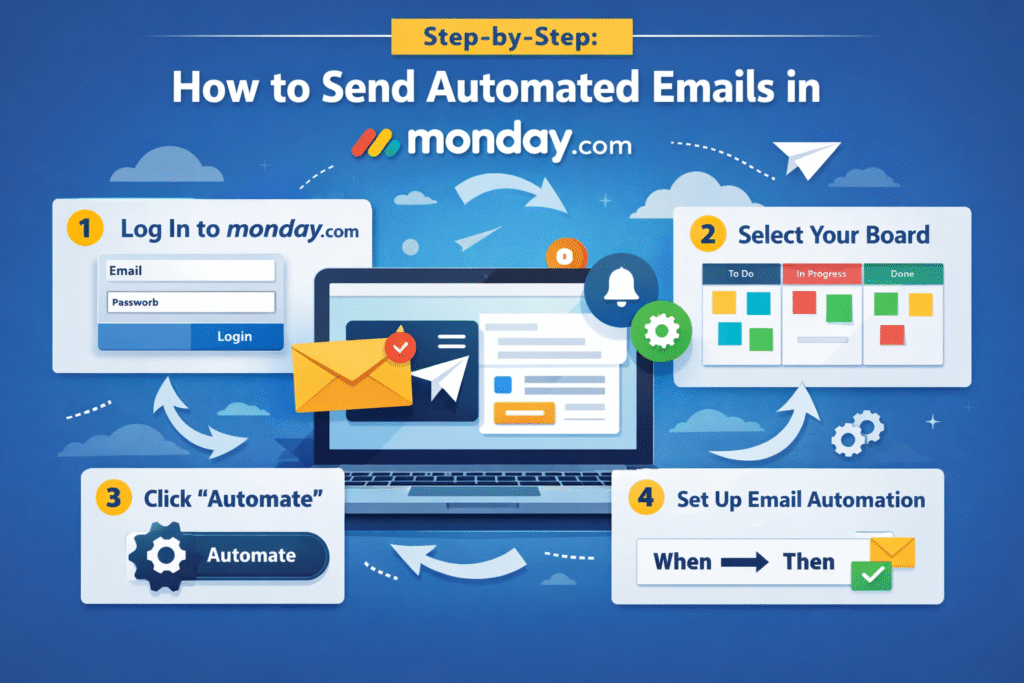
Step 1: Log Into monday.com
- Go to the official website: monday.com
- Click the Login button (top-right corner).
- Sign in using:
- Email & password
- Or Google account (faster if connected)
- Email & password
If you use Google login, your credentials auto-populate, saving time.
Step 2: Open the Board You Want to Automate
After logging in:
- Navigate to the specific board where you want to set up email automation.
- This is where your triggers and actions will live.
Think of boards as the workspace where your data, tasks, and automation rules exist.
Step 3: Click the “Automate” Button
On the top-right corner of your board, you’ll see the Automate button.
Click it.
This opens the automation center where you can create rules.
Step 4: Click “Add Automation”
Inside the automation panel:
- Click Add Automation
- You’ll now define your rule
Automation works using this formula:
When this happens → Then do this
Step 5: Define Your Trigger (“When This Happens”)
Now you must choose what event will trigger the email.
Common triggers include:
- When status changes
- When a date arrives
- When a new item is created
- When a column changes
Example Trigger:
Select:
When a column changes
You will then choose:
- Which column (e.g., Status column)
For example:
- When Status changes to “Done”
- When Status changes to “Approved”
- When Due Date arrives
This defines the event that activates your email.
Step 6: Choose the Action (“Then Do This”)
After selecting your trigger:
Click on:
Then do this
Now select:
Notify
This is the action that sends the email.
Step 7: Configure the Email Notification
Now you’ll see a configuration box.
Here’s what you’ll do:
1. Select the Sender
Choose which email address the notification will come from.
2. Select the Recipient
Click on “Someone” and choose:
- A team member
- Multiple team members
- A specific person column
- Or enter an external email address
You can notify:
- Internal employees
- Clients
- Vendors
- External collaborators
Step 8: Customize the Message
You can personalize your email message using dynamic fields.
For example:
- Item name
- Status value
- Due date
- Owner name
Example message:
The task {Item Name} has been marked as {Status}. Please review it.
This makes your automation more professional and contextual.
Step 9: Click “Create Automation”
Once everything is configured:
Click:
Create Automation
That’s it 🎉
Now, whenever your selected column changes, the email will automatically be sent.
Growing businesses need smarter systems. With monday.com, you can automate tasks, track projects, and improve team efficiency without technical skills. Create your monday.com account today and scale your operations effortlessly.
Advanced Email Automation Tips
Once you understand basic automation, you can create more powerful workflows.
1. Combine Multiple Conditions
Instead of basic triggers, you can create:
When Status changes to “Approved” AND Budget is above $5,000 → Send Email
This adds precision to your automation.
2. Use Date-Based Automations
Examples:
- When Due Date arrives → Notify Assignee
- 2 days before deadline → Send reminder email
This prevents missed deadlines.
3. Automate Client Reporting
Agencies can automate:
- Project completion emails
- Invoice reminders
- Progress notifications
This improves professionalism and reduces admin work.
4. Integrate with Email Tools
You can also connect:
- Gmail
- Outlook
Through integrations inside monday.com for even deeper automation.
Benefits for Different Teams
Project Managers
- Automatic milestone updates
- Deadline reminders
Sales Teams
- Lead status updates
- Deal closure notifications
HR Teams
- Interview reminders
- Candidate status updates
Marketing Teams
- Campaign approval notifications
- Content publishing alerts
Discover how I eliminated repetitive tasks and boosted productivity by automating workflows inside monday.com. In this detailed breakdown, I’ll show you exactly how I saved my team 47 hours every week using smart automations, CRM tracking, and streamlined project management.
How This Improves Workflow Efficiency
By setting up automated emails in monday.com, you:
- Reduce communication delays
- Improve accountability
- Speed up decision-making
- Eliminate repetitive tasks
- Increase operational transparency
For growing businesses and agencies (especially those running digital campaigns, client projects, or remote teams), this is a massive productivity boost.
Our Expert Services to Scale Your Business
At Axiabits, we design smart systems that help businesses automate, organize, and scale faster. From advanced workflow and CRM automation inside monday.com to high-performing Facebook & TikTok ad campaigns, we build results-driven solutions that save time and increase revenue.
👉 Book Now and let Axiabits build a smart, automated system that scales your business faster and smarter. 🚀
Final Thoughts
Learning how to send automated emails in monday.com is one of the fastest ways to improve team communication and eliminate repetitive manual updates.
In just a few minutes, you can:
- Set a trigger
- Choose an action
- Select recipients
- Create automation
From that point forward, your system runs automatically.
Whether you manage sales pipelines, marketing campaigns, HR processes, or client projects, email automation ensures that no important update goes unnoticed.
Stop wasting time on repetitive emails. Let automation handle it for you. Whether you’re managing projects, sales pipelines, or client work, monday.com gives you the tools you need. Join monday.com now and transform the way your team works.
Disclaimer
This article features affiliate links, which indicate that if you click on any of the links and make a purchase, we may receive a small commission. There’s no additional cost to you, and it helps support our blog so we can continue delivering valuable content. We endorse only products or services we believe will benefit our audience.
Frequently Asked Questions
How do I send automated emails in monday.com?
To send automated emails in monday.com, go to your board, click Automate, select Add Automation, choose a trigger (like a status change), then select Notify as the action and set your recipient.
Can monday.com send emails automatically to external clients?
Yes, you can enter external email addresses when setting up the notification, allowing clients or vendors to receive automated updates.
Do I need coding skills to create email automation?
No, monday.com provides a no-code automation builder, making it easy for anyone to set up automated emails.
Can I edit or delete an automation later?
Yes, you can modify, disable, or delete automations anytime from the Automations tab on your board.