
AI lip-sync technology has improved significantly, but Kling AI’s lip-sync feature still receives mixed reactions online. Some users describe it as incredible, while others find it completely unusable. The truth? Both sides are right—it all depends on how you use it.
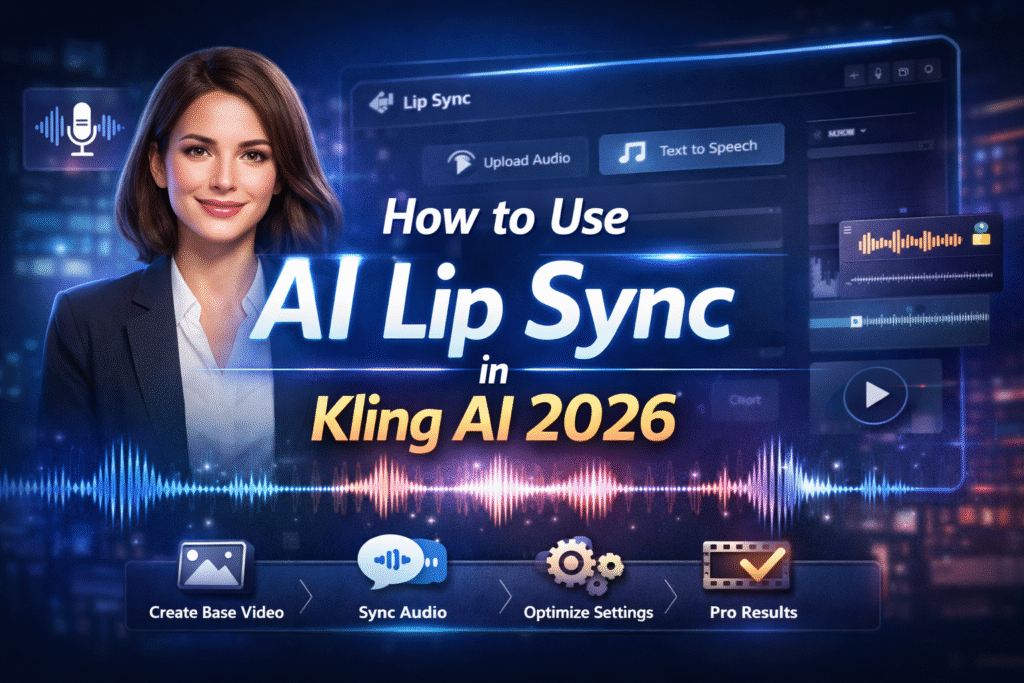
If your first attempt looked like a character having a seizure while talking, you’re not alone. Most people fail because they skip the setup process, not because Kling AI is bad. When used correctly, Kling AI can produce smooth, professional-quality lip-synced videos suitable for real projects.
If you want to create faceless YouTube videos with realistic lip sync, Kling AI is a smart choice. It helps you generate professional talking videos in minutes without complex editing. Join Now Kling AI and start creating AI videos today.
Why Most People Fail at Kling AI Lip Sync
Before jumping into the steps, it’s important to understand why lip sync results often look terrible.
Most users:
- Upload random videos
- Ignore facial motion and camera angle
- Use audio that’s too fast
- Skip professional mode
- Use vague prompts
Lip syncing is not magic. Kling AI needs the right input to produce clean output. Once you understand that, everything changes. Learn how to create professional AI lip-synced videos using Kling AI in 2026. Step-by-step guide covers base video setup, text-to-speech, timing tips, and best practices for faceless YouTube videos and AI presenters.
Step 1: Create a Proper Base Video (This Is Critical)
Your base video determines 80% of your final lip sync quality. If this step is wrong, nothing else will fix it. Kling AI is perfect for creators who want fast, affordable, and high-quality AI videos. With proper setup, you can achieve smooth lip syncing for marketing and automation content. Sign up for Kling AI and streamline your video workflow.
Option 1: Use Your Own Video
If you already have a video:
- Face must be clearly visible
- Subject should look directly at the camera
- Minimal head movement
- No existing talking or mouth movement
Videos where the person is already speaking do not work well, because the AI struggles to overwrite existing mouth movements.
Option 2: Generate a Video Inside Kling AI (Recommended)
If you don’t have a video, Kling AI makes it easy.
- Go to the Video section
- Choose Image to Video
- Upload a high-quality image
For best results, generate your image first using ChatGPT or another image AI, then upload it into Kling AI.
Step 2: Use the Same Prompt for Image and Video
Consistency is key.
If you generated your image with a prompt, reuse the exact same prompt inside Kling AI. This ensures facial structure and expression stay realistic.
Example Prompt
Professional woman sitting calmly, direct eye contact with the camera, slight smile, studio lighting, realistic face
Why Prompt Specificity Matters
Vague prompts lead to:
- Unnatural facial expressions
- Random movements
- Poor lip alignment
Being specific saves you 20 minutes of frustration later.
Step 3: Add Smart Positive and Negative Prompts
To avoid weird results, always guide the AI.
Helpful Additions
- Emotional states like relaxed, excited, or neutral
- Clear facial intent matching your audio tone
Negative Prompts
Use negative prompts to prevent:
- Face distortion
- Excessive head movement
- Cartoonish features
This step alone dramatically improves realism.
Step 4: Choose the Right Video Settings
These settings matter more than people think.
- Professional Mode: Always ON
Do not save credits here if you want quality. - Video Length: 10 seconds
Perfect balance between flexibility and processing time - Output: 1
Click Generate and wait for the video. Instead of spending hours editing or hiring freelancers, Kling AI lets you turn images and scripts into natural-looking talking videos with ease. Join Now on Kling AI and save both time and cost.
Step 5: Check Your Base Video Before Lip Syncing
Your generated video should have:
- Clear lighting
- Stable head position
- Direct eye contact
- Minimal mouth movement
This is intentional. A still mouth gives Kling AI full control during lip sync.
If your character is already talking, regenerate the video.
Step 6: Start the AI Lip Sync Process
Once your base video is ready, click Lip Sync.
You now have two audio options:
- Upload your own audio
- Use Kling AI’s built-in Text-to-Speech
If you want to take this workflow even further, make sure to check out our complete guide on Master Kling AI for Faceless YouTube Videos in 10 Minutes, where we break down how to create high-quality AI videos from start to finish using Kling AI. This step-by-step tutorial shows how to generate visuals, add voiceovers, and build faceless YouTube content quickly—perfect for beginners and automation-focused creators.
Step 7: Fix Audio That’s Longer Than the Video
This is a very common issue.
If your audio is longer than the video:
- Use Kling AI’s built-in trimming tool
- Drag the handles to cut the beginning or end
- Always trim at natural pauses, not mid-sentence
Perfect timing equals natural lip sync.
Step 8: Using Kling AI Text-to-Speech (Best Practices)
Kling AI’s TTS is surprisingly good—if you use it correctly.
Write Conversational Scripts
Bad example:
This blog will demonstrate the technical process…
Good example:
Hey there, I wanted to share something really important with you today… Designed for modern creators, Kling AI allows you to build realistic AI presenters that look and sound natural across different video formats. Sign Up Now for Kling AI and upgrade your content creation process.
Speech Speed Rule (Very Important)
- 2–3 words per second maximum
- Too fast = broken lip sync
Recommended Settings
- Voice: Test multiple, avoid robotic ones
- Speed: 0.8 (Highly Recommended)
- Emotion: Match your script (neutral, happy, casual)
This single speed adjustment fixes most timing issues.
Step 9: Important Warning for Multi-Person Videos
If your video has multiple people, Kling AI will:
- Randomly select one person to lip sync
- You cannot control which one
For consistent results, use single-person videos only.
Step 10: Generate the Lip Sync
Click Lip Sync.
Credit Breakdown (2026)
- Video generation: ~60 credits
- Lip sync: 10 credits
- Total: ~70 credits
Processing time is usually around 3 minutes, which is far faster than manual editing or hiring a freelancer.
Step 11: Review the Final Output (Don’t Panic Early)
Sometimes the preview looks glitchy.
This is a browser playback issue, not a rendering problem.
👉 Always download the video before judging its quality.
In most cases:
- Mouth movements align perfectly
- Facial expressions stay consistent
- No distortion or jitter
This is professional-grade AI lip sync.
Step 12: Use the Redub Feature to Save Credits
Not happy with the audio?
Use the Redub button:
- Change audio without regenerating the video
- Saves time and credits
- Perfect for testing different voices or scripts
Why You See Bad Kling AI Lip Sync Examples Online
Most bad examples fail for one of three reasons:
- Too much motion in the base video
- Audio is too fast
- Face isn’t clear or centered
If you see errors like “Can’t detect consistent face”, it means:
- Head movement is excessive
- Character turns away from the camera
Fix it by generating a new, more static base video.
Best Use Cases for Kling AI Lip Sync in 2026
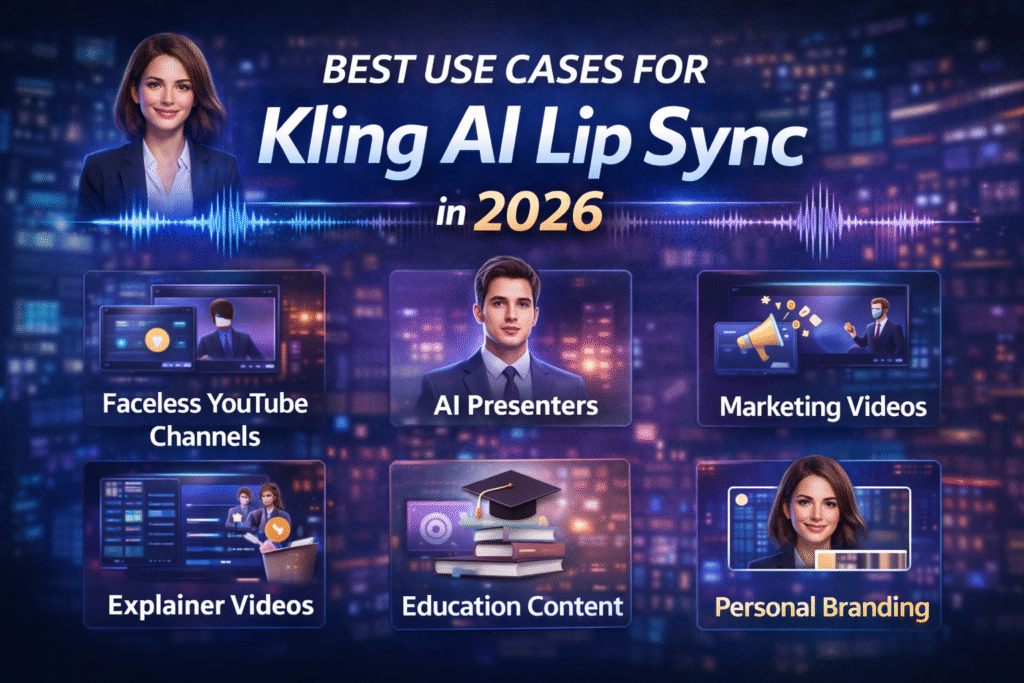
- Faceless YouTube channels
- AI presenters
- Explainer videos
- Marketing videos
- Educational content
- Personal branding videos
When done right, Kling AI lip sync is production-ready.
Professional AI Video Services
Axiabits help creators, businesses, and agencies build high-performing AI-powered video solutions that actually convert. If you’re planning to use Kling AI for lip sync, faceless YouTube videos, or AI presenters, our team ensures everything is set up the right way—from strategy to execution.
How We Can Help You
- Kling AI Setup & Optimization
Configure Kling AI for smooth lip sync, realistic AI presenters, and professional video output—so you don’t waste credits on trial and error. - Faceless YouTube Automation
Complete workflow setup including scripts, AI visuals, voiceovers, and publishing-ready videos for scalable YouTube channels. - AI Video Strategy for Brands
Custom AI video solutions for marketing, explainer videos, ads, and brand storytelling using the latest AI tools. - Content Optimization & Scaling
Optimize scripts, pacing, and visuals to improve engagement and consistency across all your AI videos.
Whether you’re just starting or looking to scale faster, we provide practical, result-driven AI solutions tailored to your goals.
👉 Book now and let’s get started!
Final Thoughts: Kling AI Lip Sync Actually Works
Kling AI lip sync isn’t broken—most workflows are.
If you:
- Create a clean base video
- Use precise prompts
- Control motion and lighting
- Slow down your audio
- Match emotion properly
You’ll consistently get smooth, professional AI lip-synced videos that look natural and usable in real projects. Whether you’re just starting or scaling a faceless channel, Kling AI gives you professional results without a learning curve. Join Now Kling AI and experience high-quality AI lip sync for yourself.
Disclaimer
This article features affiliate links, which indicate that if you click on any of the links and make a purchase, we may receive a small commission. There’s no additional cost to you, and it helps support our blog so we can continue delivering valuable content. We endorse only products or services we believe will benefit our audience.
Frequently Asked Questions
Is Kling AI lip sync actually good in 2026?
Yes, Kling AI lip sync works extremely well in 2026 if you follow the correct setup process. Most poor results come from using low-quality base videos, fast audio, or incorrect settings. With a clear face, minimal motion, and proper audio timing, Kling AI can produce professional-quality lip-synced videos.
What type of video works best for Kling AI lip sync?
Videos with a single person, direct eye contact, good lighting, and minimal motion work best. The character should not already be talking or moving their mouth, as Kling AI struggles to override existing mouth movements.
Can I use cartoon or 3D characters for lip syncing in Kling AI?
Yes, but photorealistic faces usually work better. If you use cartoon or 3D characters, you must be extra careful with lighting, face clarity, and motion control to avoid unnatural results.
What is the best audio speed for Kling AI lip sync?
The recommended audio speed is 0.8x. Normal or fast speeds often cause timing mismatches between mouth movement and speech. Slowing the audio slightly makes the lip sync appear smoother and more natural.
How many words per second should I use for lip sync?
For best results, keep speech at 2–3 words per second maximum. Packing too many words into a short video is the most common reason lip sync looks rushed or unnatural.