
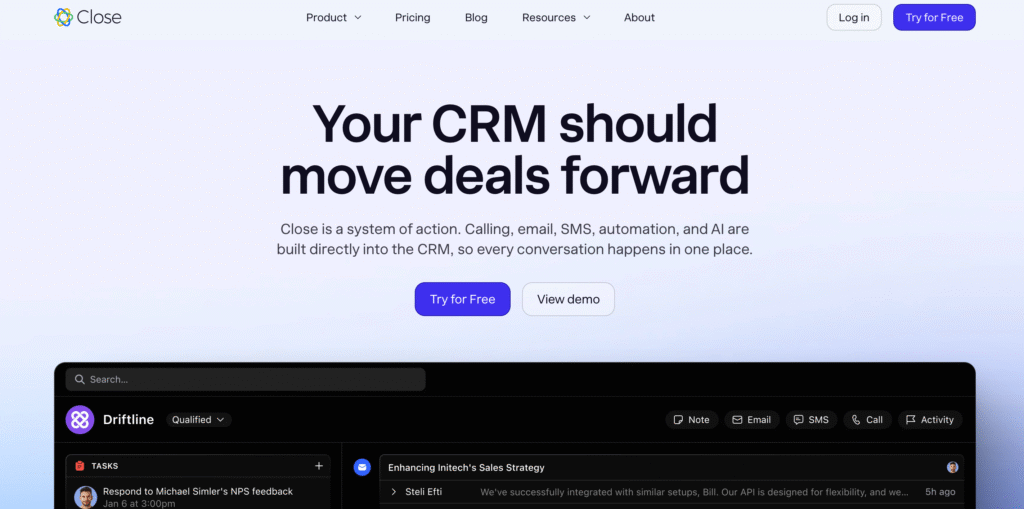
If you’re using Close CRM daily but still copying and pasting emails or relying on your sales reps to send follow-ups manually, you’re leaving serious efficiency—and revenue—on the table.
The truth is: Close CRM already has a powerful built-in workflow system that can automate your entire outreach process, including emails and SMS—without needing external tools like Zapier.
Want to automate your sales and close more deals faster? 👉 Join Close CRM today and start using powerful email + SMS workflows in minutes.
In this complete guide, you’ll learn how to use Close CRM workflows the right way, based on proven strategies, real workflow setups, and best practices extracted from the transcript above.
Master Close CRM workflows the right way. Discover email + SMS automation tips, templates, and strategies to increase conversions and engagement.
Why Close CRM Workflows Matter
Most sales teams struggle with:
- Inconsistent follow-ups
- Missed opportunities
- Slow response times
- Manual repetitive tasks
Close workflows solve all of these by allowing you to:
- Send pre-written emails automatically
- Trigger SMS messages at the right time
- Maintain consistent outreach across leads
- Track performance with built-in analytics
The result? Faster conversions, better engagement, and less manual work.
Ready to scale your outreach without extra tools? Sign up for Close CRM now and streamline your entire sales process effortlessly.
Step 1: Start with Templates (The Right Way)
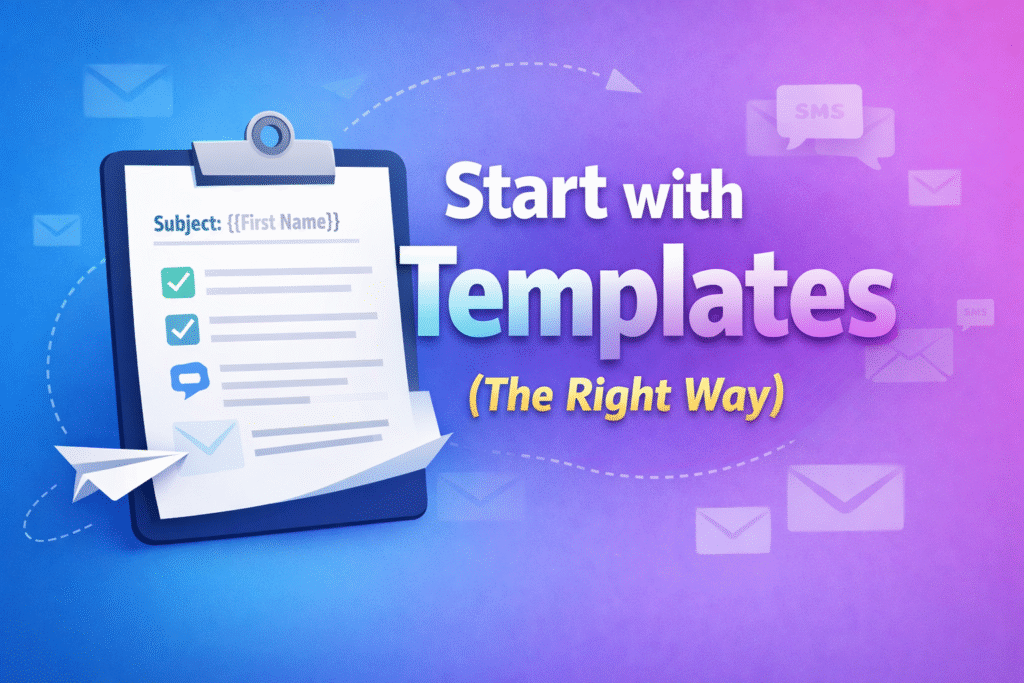
One of the biggest mistakes beginners make is building workflows first.
Wrong approach:
Creating emails and SMS directly inside the workflow builder.
Right approach:
Go to Settings → Templates & Snippets first.
Why This Matters
- Saves time (massive time saver)
- Prevents errors and duplication
- Makes workflows cleaner and easier to manage
- Avoids refresh/save issues inside workflows
Template Naming Strategy (Important for Scaling)
Use consistent naming like:
Re-engage Past Clients – May 2025 – Email 1
Re-engage Past Clients – May 2025 – SMS 1
This helps you:
- Stay organized
- Quickly find templates
- Scale campaigns without confusion
Step 2: Create High-Converting Email Templates
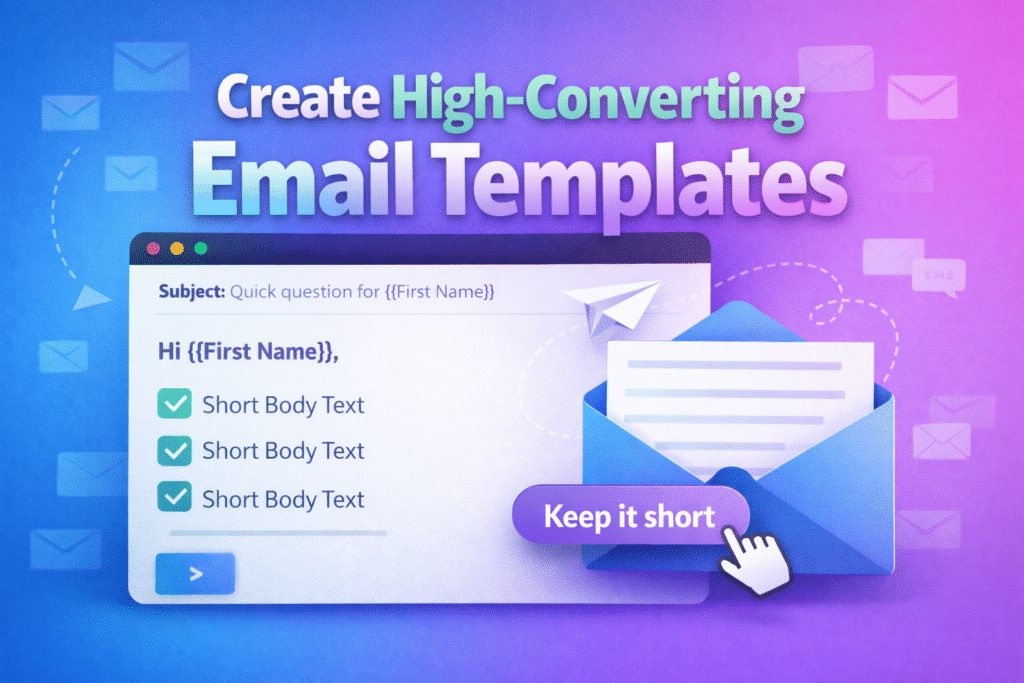
Your email templates should include:
1. Personalized Subject Line
Use dynamic variables like:
- Contact First Name
- Company Name
Example:
Hey {{contact.first_name}}, quick question
2. Clean, Simple Copy
Avoid long paragraphs. Keep it:
- Short
- Clear
- Action-driven
3. Use Template Tags
Close allows dynamic personalization such as:
- {{contact.first_name}}
- {{organization.name}}
This makes your emails feel human, not automated.
Stop wasting time on manual follow-ups. Try Close CRM today and automate your emails and SMS like a pro.
Step 3: Build SMS Templates for Higher Engagement
SMS is where most workflows win.
Why?
- Higher open rates than email
- Faster responses
- More direct communication
Best Practices for SMS:
- Keep it under 160 characters
- Be conversational
- Include a soft CTA
Example:
Hey {{contact.first_name}}, just wanted to follow up—did you get a chance to check my email?
Step 4: Build Your Workflow (Step-by-Step)
Now that your templates are ready:
1. Go to Workflows → Create New Workflow
2. Set Trigger
- Start with Manual Trigger
- Later you can automate using:
- Lead status changes
- Call bookings
- Custom events
Step 5: Define Goals (Critical Step)
Set workflow goals such as:
- Incoming email reply
- SMS reply
- Call booked
- Meeting scheduled
👉 Once a goal is achieved, the workflow automatically stops, preventing over-messaging.
Step 6: Configure Communication Schedule
Set when messages should be sent:
Recommended setup:
- Days: Monday to Saturday
- Time Window: Business hours
- Avoid Sundays
⚠️ Always ensure compliance with:
- Carrier regulations
- FTC guidelines
Looking for a smarter CRM for your business? Join Close CRM now and boost your team’s productivity instantly.
Step 7: Add Email + SMS Steps
This is where automation comes alive.
Because you created templates earlier, now it’s simple:
- Select Email 1
- Select SMS 1
- Repeat for all steps
Sender Settings
Choose:
- Enrolling User (for bulk campaigns)
- Lead Owner (for personalized outreach)
Step 8: Optimize Workflow Timing (The Game-Changer)
Most people get this wrong.
Bad Example:
- Email → Wait 3 days → SMS
Good Example (Recommended Cadence):
- Day 1 → Email + SMS
- Day 3 → Email + SMS
- Day 5 → Email + SMS
- Day 7 → Email + SMS
- Day 9 → Email + SMS
Key Insight:
- Send Email + SMS together
- Add 2-day delays between steps
This creates:
- Consistent touchpoints
- Balanced outreach
- Higher response rates
Step 9: Use Threads Strategically
You can choose:
- Send as new thread
- Send as reply
Best Practice:
Use new threads for outreach campaigns to:
- Increase visibility
- Avoid being buried in inbox threads
Step 10: Activate & Test Your Workflow
Before activating:
✔ Review all steps
✔ Check timing
✔ Verify templates
✔ Ensure sender settings are correct
Then:
- Save as draft OR
- Activate immediately
Step 11: Enroll Leads into Workflow
There are two main methods:
Method 1: Manual Enrollment
- Go to Leads
- Apply filters (e.g., “Cold Leads”)
- Click Enroll in Workflow
Method 2: Automated Trigger
Example:
- When a call is booked → Trigger workflow
If you’re exploring different CRM solutions, don’t miss our guide on How To Create a Sales CRM on Monday.com in 2025. It walks you through building a fully customized CRM system from scratch, helping you manage leads, track deals, and automate workflows—perfect if you want more flexibility alongside tools like Close CRM.
Step 12: Preview Before Sending (Very Important)
Always preview your workflow:
- Check message flow
- Verify phone numbers
- Confirm emails are valid
👉 This avoids embarrassing mistakes.
Step 13: Track Performance with Analytics
Close CRM provides built-in metrics like:
- Number of leads enrolled
- Response rates
- Goal completion rate
- Time to conversion
- Bounce rates
What to Watch Closely:
- High bounce rate → Poor data quality
- Low response rate → Weak messaging
- Slow conversions → Bad timing
Step 14: Avoid Common Mistakes
❌ Not verifying leads
Bad emails = high bounce rate
❌ Poor timing gaps
Too long = lost interest
Too short = spammy
❌ Overcomplicated workflows
Keep it simple and clean
❌ Relying on sales reps manually
Automation should handle 80%
Step 15: Should You Add Calls to Workflows?
Close allows you to add call tasks:
Two Options:
- Required calls
- Optional calls
Best Practice:
Avoid required calls because:
- They slow down automation
- Depend on human action
👉 Better approach:
Use Smart Views (Dial Lists) for calls instead.
Real Use Cases for Close CRM Workflows
1. Lead Onboarding
- Welcome email
- Intro SMS
- Follow-up reminders
2. Cold Lead Re-Engagement
- Email sequence
- SMS nudges
- Call reminders
3. Appointment Confirmation
- Confirmation email
- Reminder SMS
- Follow-up message
If you’re looking for an all-in-one marketing and CRM solution, check out our guide on How To Use GoHighLevel as a CRM in 2025. It covers everything from managing leads to automating campaigns, making it a great alternative or complement to tools like Close CRM.
Transform Your Business with CRM & Automation
At Axiabits, we help businesses streamline operations, automate sales, and scale faster with modern CRM and marketing solutions.
CRM Setup & Automation
We design and implement powerful CRM systems using tools like Close CRM, GoHighLevel, and Monday.com. From pipeline setup to advanced workflows, we automate your entire sales process.
Email & SMS Workflow Automation
Boost engagement with high-converting email and SMS sequences. We build automated workflows that nurture leads, follow up instantly, and increase conversion rates.
Lead Generation & Funnel Setup
We create optimized funnels and lead generation systems to capture, nurture, and convert prospects efficiently across multiple channels.
Business Process Automation
Save time and reduce manual work with smart automation systems tailored to your business operations and growth goals.
CRM Optimization & Consulting
Already using a CRM? We audit, optimize, and improve your existing setup to maximize performance, efficiency, and ROI.
Ready to scale your business with automation?
Work with Axiabits and Book now turn your CRM into a revenue-generating machine.
Final Thoughts
Using Close CRM workflows the right way can completely transform your sales process.
Instead of:
- Manual follow-ups
- Missed opportunities
- Inconsistent outreach
You get:
- Automated, consistent messaging
- Faster lead engagement
- Higher conversion rates
Turn more leads into customers with automation. 📈 Sign up for Close CRM today and take your sales workflow to the next level.
Disclaimer
This article features affiliate links, which indicate that if you click on any of the links and make a purchase, we may receive a small commission. There’s no additional cost to you, and it helps support our blog so we can continue delivering valuable content. We endorse only products or services we believe will benefit our audience.
Frequently Asked Questions
What are workflows in Close CRM?
Workflows in Close CRM are automated sequences that send emails, SMS, and tasks to leads based on triggers or manual enrollment. They help streamline follow-ups and ensure consistent communication without manual effort.
Do I need third-party tools like Zapier to automate emails and SMS?
No. Close CRM has a built-in workflow automation system, so you can send emails and SMS without using external tools like Zapier or other integrations.
Why should I create templates before building workflows?
Creating templates first helps you:
– Save time
– Stay organized
– Avoid errors inside the workflow builder
– Easily reuse messages across campaigns
This is the most efficient and recommended approach.
Should I send emails and SMS together or separately?
It’s best to send them together in the same step. This increases visibility and improves response rates compared to spacing them out.
Should I include calls inside workflows?
It’s better to avoid required calls in workflows because they can slow things down. Instead, use Smart Views or dial lists for calling leads separately.