

Introduction
Creating a scalable, consistent, and easy-to-maintain Webflow project starts with one crucial foundation: a properly structured style guide. If you skip this step, even small design updates can turn into a nightmare later.
That’s where Relume’s Style Guide for Webflow shines.

In this complete hands-on guide, you’ll learn how to set up your Webflow style guide using Relume, powered by Finsweet’s Client-First naming system, so your project stays clean, organized, and incredibly easy to update.
Whether you’re building marketing websites, SaaS platforms, or content-heavy projects, this setup will save you hours of redesign work down the line. Want to speed up your Webflow workflow and keep everything perfectly structured? Relume.io gives you ready-to-use components that work seamlessly with Client-First.
👉 Sign up now on Relume.io and start building smarter.
Why a Webflow Style Guide Matters
Before jumping into setup, let’s be clear on why this matters.
A proper style guide helps you:
- Maintain design consistency across pages
- Make global design changes in minutes
- Collaborate smoothly with designers and developers
- Scale projects without breaking layouts
- Improve long-term maintainability
Relume’s style guide isn’t just a design file — it’s a production-ready Webflow starter system.
What Is the Relume Style Guide?
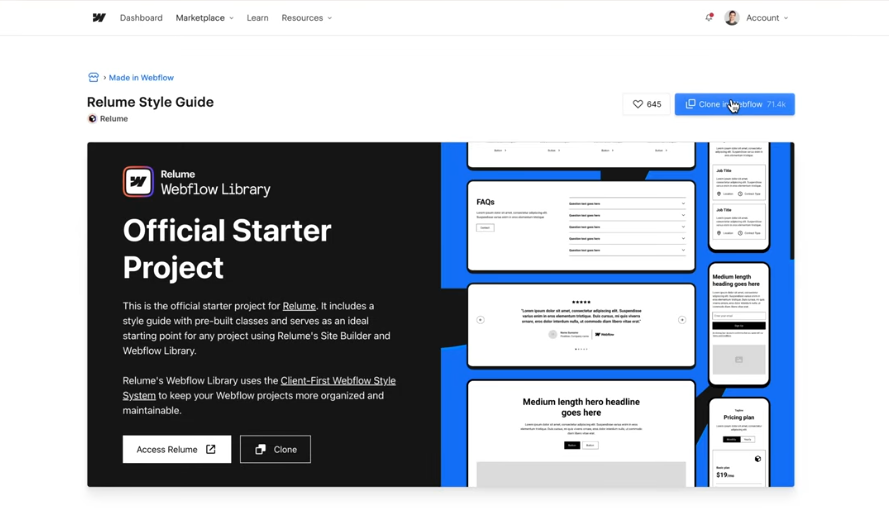
The Relume Style Guide Clonable is a pre-built Webflow project designed to work seamlessly with:
- Relume Library
- Webflow CMS
- Finsweet Client-First framework
It includes:
- Base styles
- Typography system
- Color variables
- Buttons and form styles
- Structure classes
- Utility classes
This makes it the perfect starting point for every Webflow project.
Stop rebuilding layouts from scratch. With Relume.io, you can create scalable, consistent websites in record time using professionally designed components. Get started today with Relume.io and streamline your Webflow projects.
This guide explains how to set up your Webflow style guide with Relume using Client-First, variables, and reusable components for consistent design.
Step 1: Duplicate the Relume Style Guide Clonable
Start by duplicating a fresh copy of the Relume Style Guide clonable.
This becomes your default starter project for all future builds.
Why this matters:
- It’s actively maintained by the Relume team
- Fully aligned with Client-First standards
- Designed to sync perfectly with Relume components
Once duplicated, open the Style Guide page inside Webflow.
Step 2: Understand Base Styles & Client-First Structure
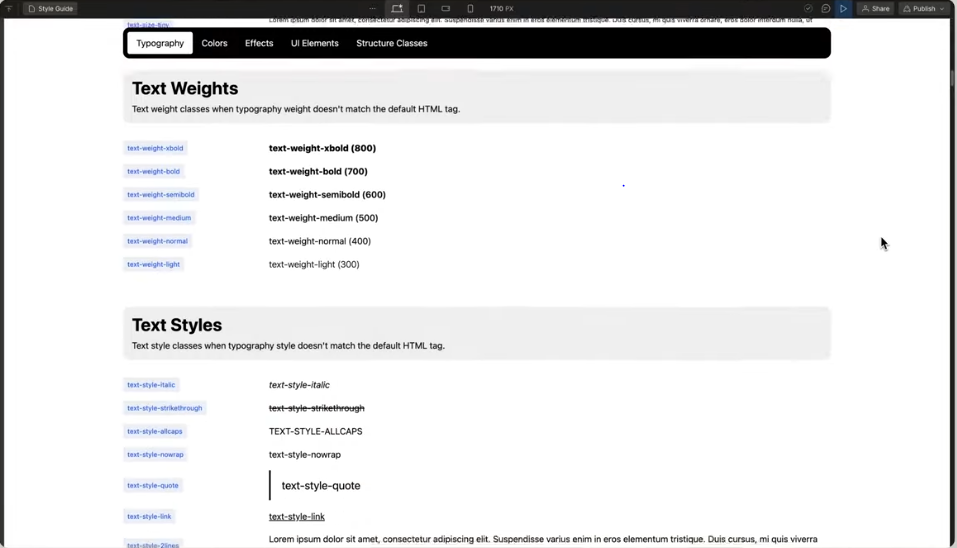
Inside the Style Guide page, you’ll see:
- Base styles
- Structure classes
- Utility classes
All classes follow Finsweet’s Client-First naming system, which separates:
- Structure (layout, spacing)
- Styling (colors, typography)
- Utilities (helpers)
Important:
Structure classes usually do not need to be edited. They’re designed to stay consistent across projects.
Step 3: Set Up Color Variables (The Right Way)
Instead of manually assigning colors everywhere, Relume uses Webflow Variables.
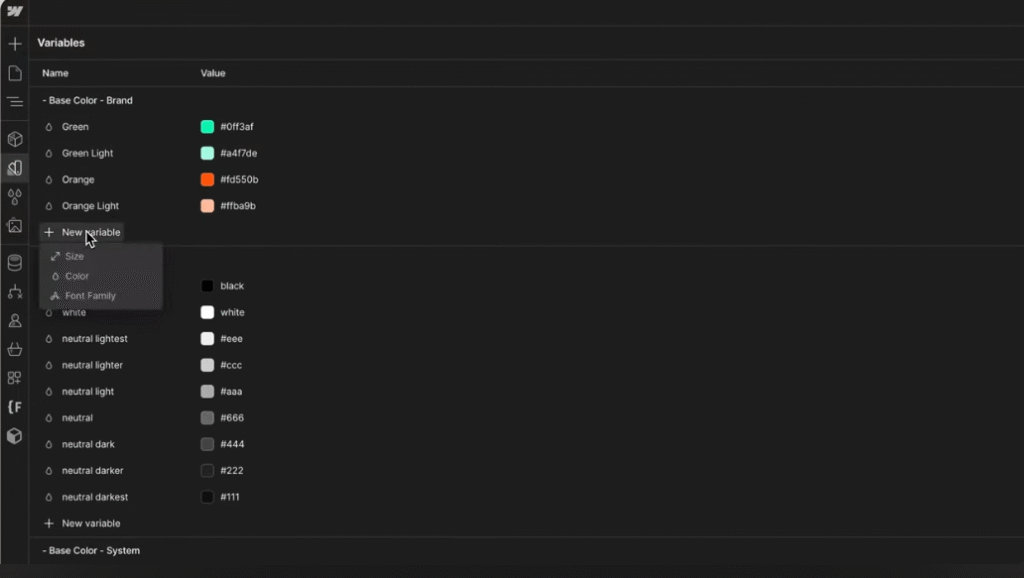
1. Brand Colors
These are your primary brand colors used across:
- Headings
- Buttons
- Links
- Highlights
Add all major brand colors to the Variables panel.
2. Neutral Colors
Neutral colors act as the canvas of your site:
- Backgrounds
- Borders
- Shadows
- Dividers
Think whites, grays, and subtle blacks.
3. System Colors
System colors are used for:
- Success states
- Error messages
- Warning alerts
These are especially important for:
- Forms
- Notifications
- Validation messages
Once added, these variables can be reused globally — update once, change everywhere.
Step 4: Typography Setup (Body, Headings & Classes)
Typography is one of the most important parts of your style guide.
Style the Body Tag First
Start with the Body HTML tag:
- Font family
- Font size
- Line height
- Text color
- Background color
This ensures your entire site inherits consistent defaults.
Headings: HTML Tags + CSS Classes
Relume allows you to style:
- Heading HTML tags (H1–H6)
- Heading CSS classes
Why both?
Because:
- What’s important for users
- And what’s important for search engines
…is not always the same.
This setup gives you full control over visual hierarchy without hurting SEO.
Responsive Typography
Relume includes default styles for:
- Desktop
- Tablet
- Mobile
Still, always double-check:
- Font sizes
- Spacing
- Readability
Small tweaks here make a massive UX difference.
Step 5: Style Remaining Text Elements
Next, refine:
- Paragraphs
- Text sizes
- Font weights
- Line heights
- Links
You can simply tweak existing values to match your design system — no need to create new classes unless required.
Step 6: Rich Text Styling for Blogs & CMS Content
If your project includes:
- Blogs
- Knowledge bases
- Long-form content
You’ll want custom Rich Text styles.
Relume allows you to:
- Style headings inside Rich Text
- Control spacing
- Customize lists, quotes, and links
This ensures CMS content looks just as polished as static pages.
Step 7: Display Background & Text Colors in the Style Guide
Even though colors live in variables, it’s useful to visually display them inside the style guide.
How?
- Duplicate an existing color block
- Rename the label
- Link it to the correct variable
Now designers and developers can instantly see:
- Available colors
- Naming conventions
- Usage intent
If you’re serious about clean Webflow builds, Relume.io is a must-have. It integrates beautifully with structured style guides and keeps your designs organized. Join Relume.io now and level up your Webflow workflow.
Step 8: UI Elements – Buttons, Forms & States
This is where your site truly comes to life.
Buttons
Customize:
- Background color
- Border radius
- Padding
- Text style
Also define button states:
- Hover
- Pressed
- Focused
- Disabled
Forms
Style:
- Input fields
- Labels
- Placeholders
- Borders
- Error & success states
Don’t forget:
- Focus states
- Validation feedback
- Accessibility contrast
Step 9: Icons & Media
Icons typically appear as:
- SVGs
- Images
Keep them:
- Consistent in size
- Aligned with your color system
- Organized in your asset library
Step 10: Structure Classes (Hands Off)
Relume’s structure classes are intentionally designed to stay untouched.
They handle:
- Layout
- Spacing
- Grids
If you want to understand why they’re built this way, Finsweet’s Client-First documentation explains everything in depth.
Your Project Is Now Ready for Relume Imports
Once your style guide is complete:
- Colors are standardized
- Typography is locked
- UI elements are polished
You’re now ready to import components from Relume into Webflow seamlessly, without breaking styles or consistency.
This is where the real speed advantage kicks in. A well-structured Webflow style guide doesn’t just improve design consistency — it also lays the foundation for advanced performance and optimization workflows. In our detailed case study, How We Built a Webflow AI-Powered Website Optimization Solution, we break down how clean Client-First structure, scalable style guides, and reusable components helped us integrate AI-driven improvements without breaking layouts or styles. If you’re curious how thoughtful design systems connect directly to smarter automation and optimization in Webflow, this is a must-read.
How We Can Help You Build a Scalable Webflow Design System
Setting up a style guide correctly can feel overwhelming — especially if you’re working on client projects or scaling fast.
At Axiabits, we help brands and agencies:
- Set up Relume + Client-First style guides
- Create scalable Webflow design systems
- Optimize typography, colors, and UI components
- Ensure clean, maintainable Webflow builds
- Seamlessly integrate Relume components into real projects
If you want your Webflow project done right from day one, we’ve got you covered.
Book now and let’s get started!
Final Thoughts
A well-structured style guide isn’t optional — it’s the backbone of every successful Webflow project.
By using Relume’s Style Guide, Webflow Variables, and Client-First naming, you’re building websites that are:
- Easier to maintain
- Faster to scale
- Cleaner to collaborate on
Set it up once — and thank yourself on every future update. From startups to agencies, thousands of creators trust Relume.io for faster, cleaner Webflow development. One signup can change how you build forever. Sign up now on Relume.io and experience the difference.
Disclaimer
This article features affiliate links, which indicate that if you click on any of the links and make a purchase, we may receive a small commission. There’s no additional cost to you, and it helps support our blog so we can continue delivering valuable content. We endorse only products or services we believe will benefit our audience.
Frequently Asked Questions
What is the Relume Style Guide in Webflow?
The Relume Style Guide is a pre-built Webflow starter framework designed to help you manage colors, typography, UI elements, and structure classes efficiently. It’s built using Finsweet’s Client-First naming system, making projects scalable, organized, and easy to maintain.
Why should I use a style guide in Webflow?
A Webflow style guide ensures design consistency across your entire website. It allows you to make global changes quickly, reduces repetitive styling work, improves collaboration, and keeps large projects clean and manageable.
Is the Relume Style Guide beginner-friendly?
Yes. The Relume Style Guide is beginner-friendly while still being powerful enough for advanced users and agencies. Even if you’re new to Client-First, the structure is intuitive and easy to follow.
How does Relume work with Finsweet Client-First?
Relume’s style guide is fully aligned with Finsweet’s Client-First framework. It separates structure, styling, and utility classes, helping you build websites that are easier to scale, update, and hand off to clients or teams.
Can I customize colors and typography in the Relume Style Guide?
Absolutely. You can customize all brand, neutral, and system colors using Webflow Variables. Typography for body text, headings, and rich text content can also be fully adjusted to match your brand identity.


