
If you’ve ever wanted your own AI assistant that runs 24/7, remembers conversations, connects to your apps, and works in the background — this complete beginner’s guide will walk you through it step by step.
In this blog, you’ll learn the best and easiest way to set up OpenClaw (Clawdbot) using a VPS, connect it to Telegram and Google Workspace, install skills, and schedule automated tasks — all without writing code. Want a self-hosted AI assistant? Follow this OpenClaw setup guide to deploy on VPS, integrate Google Workspace, and automate daily tasks.
By the end, you’ll have an AI assistant you can text from your phone that runs continuously and handles real work for you.
What Is OpenClaw (Clawdbot)?
OpenClaw (also known as Clawdbot) is an open-source AI assistant framework that runs on your own server. Unlike traditional AI chat tools that you visit in a browser tab, OpenClaw:
- Lives inside apps you already use
- Runs in the background
- Executes scheduled tasks
- Connects to external services
- Remembers context over time
If you’re exploring alternative ways to deploy your assistant without using a VPS, don’t miss our complete guide on Install Clawdbot (Moltbot) for Free Using Gemini API and AWS. In that blog, we walk you through setting up Clawdbot on AWS and connecting it with the Gemini API for a cost-effective, cloud-based solution. It’s perfect if you want more control over infrastructure or prefer Amazon’s ecosystem for hosting and scalability.
How Is It Different From ChatGPT?
ChatGPT is a destination tool. You open it, ask something, get an answer, and close the tab.
OpenClaw is different.
Instead of being a place you visit, it becomes:
- A persistent assistant
- A background worker
- A scheduled automation engine
- A connected system across apps
Once set up, it keeps running — even when your laptop is closed.
Why You Should Use a VPS (Instead of Your Laptop)

Technically, you can run OpenClaw on:
- A spare laptop
- A desktop PC
- A home server
But here’s the problem:
If your computer:
- Goes to sleep
- Restarts
- Loses internet
- Shuts down
Your assistant disappears.
That defeats the purpose of automation.
The Smart Solution: Use a VPS
A VPS (Virtual Private Server) is:
- A computer in the cloud
- Always online
- Accessible from anywhere
- Isolated from your personal device
For beginners, the easiest VPS option is:
Hostinger
Why it’s ideal for OpenClaw:
- Beginner-friendly interface
- One-click OpenClaw deployment
- KVM plans with strong performance
- Built-in Docker manager
- Affordable pricing
This keeps OpenClaw isolated, secure, and running 24/7.
If you’re ready to launch your OpenClaw assistant the easy way, I highly recommend using Hostinger VPS. It offers one-click OpenClaw deployment, reliable 24/7 uptime, and beginner-friendly management — so you don’t have to deal with complicated server setups. Get started with Hostinger VPS today and lock in the best available discount..
Step 1: Deploy OpenClaw on Your VPS
When choosing your VPS plan:
Recommended: KVM 2 Plan
You’ll get:
- 2 vCPU cores
- 8GB RAM
- 100GB NVMe storage
- 8TB bandwidth
This is more than enough for a personal AI assistant.
Choose Billing Period
Options:
- 24 months (best savings)
- 12 months (recommended minimum)
- 1 month (short-term testing)
Once payment is completed, deployment begins.
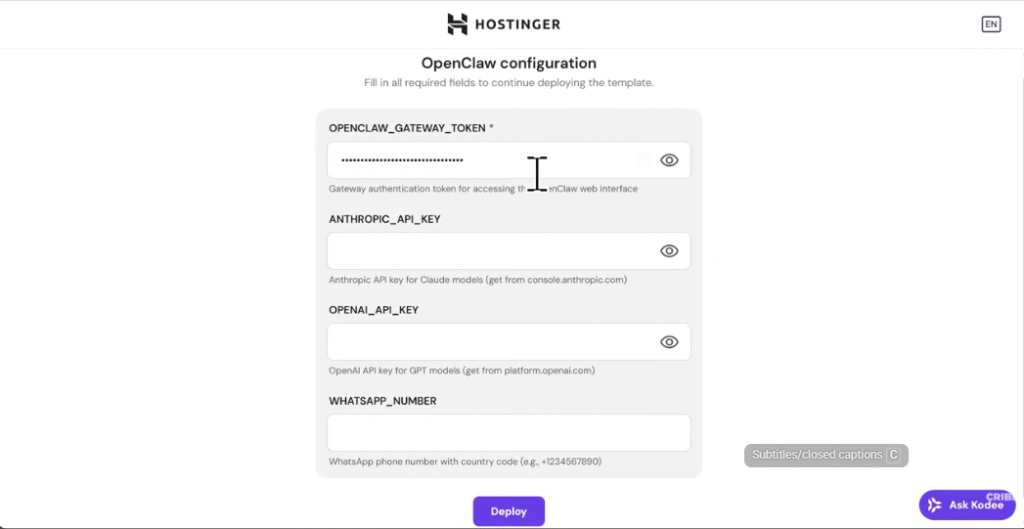
Step 2: Save Your Gateway Token
After clicking Get Started, you’ll see your:
OpenClaw Gateway Token
Treat this like a password.
- Copy it
- Save it securely
- Never share it
- Regenerate if exposed
This token connects your dashboard to your server.
Step 3: Add Your AI Model API Keys
OpenClaw itself is free.
The cost comes from AI model usage.
You’ll need at least one API key:
- OpenAI API
- Anthropic API
Option 1: OpenAI
Create a new secret key inside:
OpenAI
Name it something like:
OpenClaw
Copy the key and paste it into your VPS dashboard.
Option 2: Anthropic (Claude Models)
Create an API key inside:
Anthropic
This gives you access to Claude models.
Having both keys allows you to switch models anytime.
Important:
- Enable billing
- Monitor usage
- Start small
- More powerful models = higher cost
Step 4: Connect the Gateway
After deployment:
- Open your OpenClaw dashboard
- It will show: “Disconnected from gateway”
- Go to Overview
- Paste your saved Gateway Token
- Click Connect
If successful, status changes to:
✅ Connected
Test by sending a message inside the dashboard chat.
If it replies — you’re live.
Step 5: Connect Telegram (Most Popular Setup)
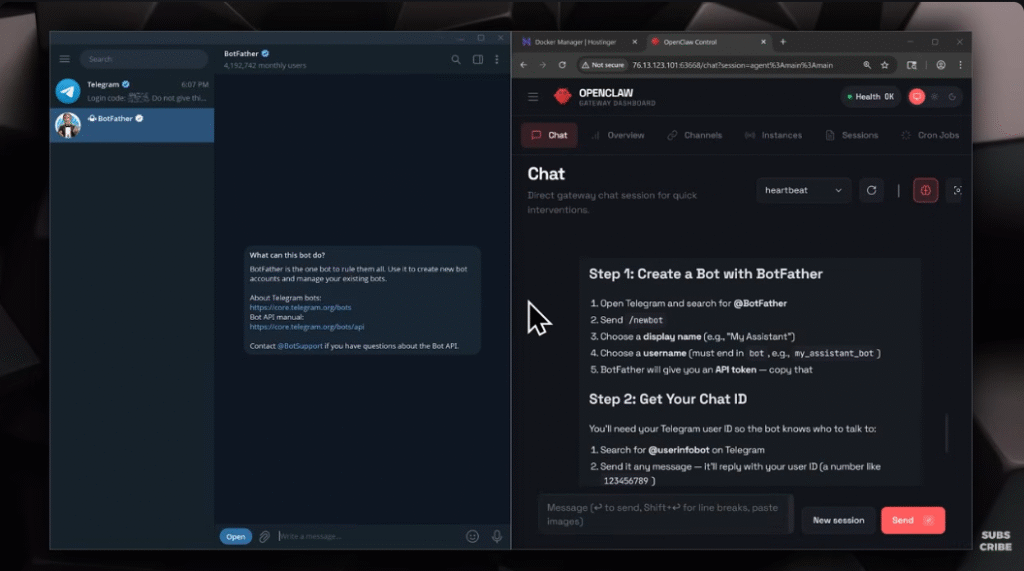
Telegram is the easiest way to talk to your assistant.
Why Telegram?
Telegram allows:
- Easy bot creation
- Secure token usage
- Mobile + desktop support
- Instant notifications
Create a Telegram Bot
- Open Telegram
- Search for:
BotFather
- Type:
/newbot
- Give your bot:
- A name
- A username (must end in “bot”)
- A name
Example:
OpenClawblogBot
BotFather will generate a Bot Token.
Copy it.
Connect Bot to OpenClaw
Send the bot token as a message inside OpenClaw dashboard.
Next, you’ll need your Telegram User ID.
Use:
User Info Bot
It gives you your Telegram User ID.
Send that ID to OpenClaw.
If configured correctly, you’ll see:
Telegram configured. Gateway restarting.
Now message your bot directly inside Telegram.
If it replies — you’re fully connected 🎉
Step 6: Switch Between AI Models
Ask your assistant:
What model are you using?
It might reply:
- Claude Opus
- GPT-4o
To switch models, just tell it:
Switch to GPT-4o
OpenClaw rewrites backend configuration automatically.
No manual coding needed.
Step 7: Install Skills (Expand Capabilities)
Skills are plugins that give your assistant new abilities.
You can find skills in:
- ClawHub
- GitHub public directory
Example skill: Google Workspace integration.
Connect Google Workspace
This skill allows access to:
- Gmail
- Google Calendar
- Drive
- Contacts
- Sheets
Search for Google Workspace CLI skill on GitHub.
Then message your assistant:
Install this skill:
[GitHub link]
It will:
- Install automatically
- Ask for required setup
- Guide you through OAuth configuration
What If Installation Fails?
Sometimes you’ll see:
brew not installed
That means a dependency is missing.
Fix it inside Hostinger’s Docker manager or terminal.
If stuck, ask your assistant:
What dependency is missing?
It usually gives direct instructions.
Step 8: Set Up Cron Jobs (Automation Engine)
This is where OpenClaw becomes powerful.
Go to:
Control Panel → Cron Jobs
You’ll see:
- Scheduler status
- Job creation form
Example: Daily Email Summary
Name:
Summarise Emails and Meetings
Schedule:
- Every 1 day
System Text:
Check my Gmail and Google Calendar.
Summarise anything important since the last run.
Send me an update on Telegram.
Click Add Job.
Now your assistant:
- Wakes up daily
- Checks accounts
- Sends summaries automatically
No manual input needed. If you’re curious whether AI automation truly delivers or is just hype, check out our article AI Hype vs Reality: Why ClawdBot Is the First AI That Actually Works 24/7. We break down what most AI tools promise versus what ClawdBot actually does — running continuously, executing tasks in the background, and functioning like a real digital assistant instead of just another chatbot.
Step 9: Manage Your VPS
Inside Hostinger Docker Manager, you can:
- Restart OpenClaw
- Redeploy containers
- Update API keys
- Modify environment variables
- Access terminal
This is your control panel.
Once configured, you rarely need to touch it.
Step 10: Secure Your Setup (Very Important)
OpenClaw is powerful.
It can access:
- Emails
- Calendar
- Files
- Bots
- API services
So security matters.
1. Enable Backups
Upgrade to daily backups if possible.
2. Lock Dashboard Access
- Use strong passwords
- Restrict IP access
- Use VPN if possible
3. Use SSL Certificate
If you attach a domain, enable HTTPS.
Encrypted connection = safer login.
4. Treat Tokens Like Passwords
Never share:
- Gateway token
- Telegram bot token
- OpenAI key
- Anthropic key
If exposed:
- Regenerate immediately
- Redeploy if needed
Real Use Cases for OpenClaw
Here’s what you can automate:
- Daily email summaries
- Calendar reminders
- Task management
- Slack/Telegram notifications
- Data extraction
- File organization
- CRM updates
- Lead tracking
- Market research alerts
- Content planning workflows
It’s not just a chatbot.
It’s a background AI operator.
Let Us Build & Automate Your AI Assistant
At Axiabits, we help businesses set up, customize, and scale powerful AI automation systems like OpenClaw — without the technical headaches. Whether you’re a founder, agency, or eCommerce brand, we handle the complete setup so your AI assistant runs smoothly 24/7.
What We Can Do for You
1. Complete OpenClaw VPS Setup
We deploy and configure your OpenClaw assistant on a secure VPS (like Hostinger), including gateway setup, API integrations, and security hardening.
2. AI Model Integration
We connect and optimize models from OpenAI and Anthropic to ensure the best performance while keeping usage costs under control.
3. Telegram & Messaging Bot Setup
Full bot configuration on Telegram or other platforms so you can chat with your assistant from mobile or desktop.
4. Google Workspace Automation
We integrate Gmail, Calendar, Drive, and Sheets so your assistant can summarize emails, manage meetings, and automate repetitive admin tasks.
5. Custom Skills & Workflow Automation
Need advanced workflows? We install and configure custom skills, build automation sequences, and set up Cron jobs tailored to your business operations.
6. VPS Security & Optimization
From SSL setup and backup configuration to dashboard protection and token security, we ensure your assistant runs safely and reliably.
Ready to launch your own AI assistant the right way? Book now and let’s get started!
Final Thoughts
Setting up OpenClaw may look complex at first — but with a VPS and the one-click deployment process, it becomes beginner-friendly.
In this guide, you learned how to:
- Deploy on a VPS
- Connect API keys
- Configure Telegram
- Install skills
- Schedule automations
- Secure your setup
Once running, your assistant:
- Works 24/7
- Lives inside your messaging app
- Remembers context
- Executes tasks automatically
You now have your own private AI system — not just a chatbot.
And the best part?
You control it.
Disclaimer
This article features affiliate links, which indicate that if you click on any of the links and make a purchase, we may receive a small commission. There’s no additional cost to you, and it helps support our blog so we can continue delivering valuable content. We endorse only products or services we believe will benefit our audience.
Frequently Asked Questions
What is OpenClaw (Clawdbot)?
OpenClaw is an open-source AI assistant framework that runs on your own VPS or server. Unlike browser-based AI tools, it works in the background, connects to external apps, installs skills, and runs scheduled automations 24/7.
Is OpenClaw free to use?
Yes, OpenClaw itself is free. However, you must pay for AI model usage through providers like OpenAI or Anthropic. These platforms charge based on API usage (per request or message).
Can I run OpenClaw on my personal computer?
Yes, but it’s not recommended for serious use. If your computer shuts down or loses internet, your assistant stops working. Using a VPS like Hostinger ensures your assistant stays online 24/7.
Do I need coding skills to set up OpenClaw?
No. With one-click VPS deployment and guided setup steps, beginners can install and configure OpenClaw without writing code.
Why is Telegram commonly used with OpenClaw?
Telegram allows easy bot creation and secure token integration. It works on desktop and mobile, making it ideal for chatting with your AI assistant anytime.


